Author: Emmanuel Boakye Yiadom

  • How To Encrypt Files, Folders, And Drives On Windows 10

    How To Encrypt Files, Folders, And Drives On Windows 10

    Privacy Protection is important to each and every one of us. Protecting our personal files is everyone’s topmost priority. Not all files should be accessible to everyone even our family.

    Encryption is the way to go if you want to prevent any other third party from accessing your data. This article is centred on Windows 10 operating system users.

    As a Windows 10 user, you have numerous option for encrypting information. In this tutorial, I will show you how to encrypt individual files, file folders, and even entire disk drives.

    There are types of encryption that you can use. We are going to talk about all.

    • Individual file encryption
    • Folder encryption
    • Hard drive/ Disk encryption.

    Individual File Encryption

    Individual file encryption refers to encrypting one file at a time. Each file will have its own unique password or key.
    Files you plan to share or store in the cloud is best for individual encryption.

    Windows 10 users can use software’s like 7-zip to encrypt files. Microsoft Office files can also be encrypted individually from within their apps.

    Folder Encryption

    With folder encryption, every data in a folder will be encrypted. Passwords or keys are assigned to the folder but not individual files. Folder encryption is a great organizational tool. For example, you can create a whole folder for your personal data you don’t want to fall in the hands of third parties and encrypt with a key or password.

    Also, you can create folders for people who use your computer and set password or keys for each person so that they can only access those folders when using your computer.

    You should note that encrypting files in a folder doesn’t prevent you from encrypting individual files in a folder.

    Hard Drive Or Disk Encryption

    This type of encryption secures the entire drive at once as the name suggests. To use an encrypted hard drive, you would need the password or key that was used to secure the hard drive.

    Without the password, nothing can be accessed on the drive. If your computer is stolen or misplaced and falls in the hands of bad people, they will need to bypass the encryption to use the device. This makes hard drive encryption a first defence for such situations.

    How To Encrypt Files And Folders In Windows 10

    Your version of Windows 10 will determine the type of encryption to use. For Windows 10 Pro and Enterprise, users have a built-in encryption tool called the Encrypting File System (EFS).

    For other Windows 10 users, third-party apps will be available for use. The recommended software to consider is 7-zip for file and folder encryption.

    Apart from this, Microsoft Office and Adobe Acrobat apps also have a built-in basic file encryption option. We are going to focus on these in this post.

    How To Encrypt Files And Folders Using The Encrypting File System

    As said earlier on, the EMS is available for only the Pro and Enterprise users. It is located as an Advance feature in the Windows File Explorer. If this is used carelessly, you won’t be able to access your files till eternity.

    EFS comes with its own Con’s. Let’s highlight some of the Con’s of EFS below.

    • EFS works on only NTFS formatted drives
    • Once you move EFS encrypted file from an NTFS drive to a Fat32 or extFAT drive, the file automatically decrypts.
    • If you also move EFS files to a netork or sends via an email, the file becomes decrypted.

    Now you know the Cons, you can consider your options on which encryption to use.

    Below are the steps to follow to encrypt a file using EFS.

    1. Open file explorer and navigate to the file or folder you want to encrypt.
    2. Right-click the file or folder.
    3. Navigate to properties
    4. In the general tab of properties, locate and click on the advanced button.
    5. An advanced attributes box will appear. Tick the Encrypt Contents to Secure Data check box.
    6. Click OK.

    Successfully, you have encrypted your file/folder and this will be accessible by only you.

    How To Encrypt Files Or Folders With 7-Zip On Windows 10

    7-Zip is a free software for file compression but can also be used for file and folders encryption. To proceed, you need to have the 7-Zip software installed on your device. After successful installation, follow the below steps.

    • Right-click on the file or folder you want to encrypt.
    • In the shortcut menu that appears, choose 7-zip, the Add to Archive. The Archive menu window will pop-up.
    • Enter the name of the Archive you want to create in the Archive field.
    • Select zip in the Archive format.
    • In the Encryption section, enter a strong password in the password field and confirm the accuracy of the password by re-entering it the next bar.
    • In the Encryption Method list, select AES-256.
    • Select Ok. That’s all, you encrypted your file.

    How To Encrypt Files Using Microsoft Office On Windows

    With this, we are going to use Microsoft Office.

    1. Open the document you want to encrypt with Microsoft Office.
    2. Select file then choose info.
    3. In the popup info window, choose protect.
    4. In the menu that shows, select Encrypt with a password.
    5. Enter the password you want to use in the menu that shows.

    That’s all. Anytime you want to access the document, you will have to open it with the password you used for the encryption.

    How To Encrypt Hard Drives On Windows 10.

    With the hard drive encryption, we are going to use the services of a third party to realize this. The software we are going to use is called Veracrypt. Download and install Veracrypt to proceed with us on this section. Below are the steps to follow to encrypt your entire hard drive.

    • Launch Veracrypt and select System from the menu. Select Encrypt system partition/drive.
    • The Veracrypt Volume Creation wizard appears. Select Normal and click the Next button to proceed.
    • The wizard will ask you whether to encrypt just the Windows System partition or the entire drive. At this juncture, the choice is yours. You can choose the best option that suits you. Choose and click Next to proceed.
    • The number of operating systems will show next. If you are using dual-booting or single boot, you can choose the preferred option of your computer.
    • The Encryption Option window will show next. Choose AES for the encryption algorithm and SHA 256 for the Hash Algorithm. Click the next button to continue.
    • The password window will now show. It is recommended you set a strong password. Click next to advance to the next window.
    • The collecting random window will come next. You will be asked to move your mouse around randomly within the window. You can click the Next button once the meter button of the page is full.
    • The key generated window is the next to show. You need not do anything here. Just press enter to continue.
    • The next step is to create a Verascrypt Rescue Disc (VRD). After creating a VRD, identify the location Verascrypt saves the ZIP image. If you don’t want to create a Rescue disk, you can skip the option.
    • If you skipped, overlook this part. Verascrypt will ask you to create a physical rescue disk for inspection.
    • After a successful application, there will be a Rescue disk verified window.
    • After this, the Wipe Mode window appears. This option doesn’t need any attention. Set it to (none) and proceed.
    • The system encryption preset now appears. This is where Veracrypt checks and see if the encryption will work.
    • If everything went well, your system will restart and there will be a new encrypted window. Anytime you want to access the windows or hard drive, you will need to input the encrypted key or password.

    Conclusion

    Privacy protection is one of the most important things people don’t joke with. Encrypting your files is the least you can do to protect your important data’s.

    In this article, we looked at how to encrypt files or folders or hard drives using built-in applications or third party app. If this post educated you very much, don’t forget to comment your expertise.

  • How To Get Your NSS Certificate Delivered To Your Doorstep

    How To Get Your NSS Certificate Delivered To Your Doorstep

    Ghana is one of the African countries that are on the process of Digitization. With the advancement in technology in the 21st century and how countries have adjusted themselves to use technology in all aspects of life, Ghana is not far away from doing the same.

    The president of Ghana has made digitization a centrepiece for its own development, thus the average Ghanaian has become used to digital telecom and financial services.

    In 2018, the National Service Scheme digitized its certificate system to enable personnel who have successfully completed their service apply for their certificate online.

    Once you apply online, your certificate will be delivered to your location. This was made possible by NSS collaborating with Delivery Hub Limited (DHL).

    Since there were challenges in the collecting of NSS certificates, lack of proper inventory systems to file certificates and difficulty in locating certificates, there was the need to go digitize to solve all these problems.

    The National Service Secretariat indeed proved that we are in a digital world. For those who are leaving in far places that need to travel several miles to the regional National Service Office to obtain your certificates can now sit at the comfort of your homes and request your certificates.

    In this article, I will take you through the steps to follow to have your NSS certificate delivered to your doorstep.

    Have Your NSS certificate Delivered To Your Doorstep

    1. To begin, first, visit the NSS certificate website. Verify your NSS number and press enter to proceed. If in any way you don’t remember your NSS number, you can click on the “Don’t know your NSS number? Search below” button to access your account in an alternative way.
    2. The first stage of the National Service follows after successful verification. Fill in all the needed information at this stage. Information like your full name, NSS number, GPS address, Region of service, institution etc are asked. Press enter after filling the forms.
    3. The next stage of the NSS certificate request is the “Electronic Consent Authorization Confirmation”. This is when you give consent to release information from Educational Records. Space for you to draw your signature will be provided.
    4. The third stage of the National Service Certificate request is the details preview stage. This stage is where you preview your entered information and cross-check if the information is accurate.
    5. The fourth stage is the Payment. This is where you choose a payment option to submit your payment for the delivery of your NSS certificate. You can pay with MTN mobile money or Express. As of 2019/2020, the cost of the delivery is 31.52 GHS.
    6. After submitting your payment, you would be asked to approve the payment from your account.

    After performing all the task above, your NSS will be delivered to your doorstep.

    Conclusion

    Going a long distance for your National Service Certificate is a thing of the past. With NSS gone digitized, you can sit at the comfort of your home and request your NSS certificate delivered to your

  • How To Use Reels By Instagram

    How To Use Reels By Instagram

    What is Instagram Reels?

    Reels is the latest feature Instagram added to their recent update, letting you make videos of 15 seconds with AR filters and other special effects just like Instagram stories. With Instagram’s Reels. you can show off your creativity in so many diverse ways.

    With Reels, you can film, edit and post 15 seconds video in the Instagram app which makes this new feature a major competitor for TikTok. Social media Influencers and creators now have a new way to make and share short-form content.

    Reels have some catching up to do if its competing TikTok. TikTok has over 2 billion downloads and is widely popular within a short pace after its launch, whereas, Instagram has over 1 million active users which are slightly behind TikTok.

    Instagram’s Reels will be an alternative to people who don’t want to download the TikTok app considering its ban in the USA due to TikTok’s ties with China.

    How To Make An Instagram Reel

    1. Download the latest version of Instagram on IOS or Android from the Apple store or Playstore.
    2. Swipe up to open the Instagram camera, or tap the icon in the top left corner.
    3. On top of the screen, tap Reels.
    4. Tap the record button to film your Reel ( clip must be within 3 – 15 seconds).
    5. On the left of the screen, you can navigate or explore the editing tools of Reels to add adjustments, and effects to your clip.
    6. You can immediately post or share your Reels clip or save to draft and add more edits later.

    Add Videos You Have Already Filmed To Reeve.

    An already recorded video can be added on Reels to add edits and adjustments. Below are the steps to follow.

    1. Open the Instagram app
    2. Swipe up to open the camera.
    3. Choose Reels at the button of the screen
    4. Swipe up to pool your camera poll
    5. Navigate to your video and trim the video to the recommended video time.
    6. You can edit the clip by adding audio, effects and adjustments.
    7. The video can be published in your Instagram story or feed.

    Businesses can use Reels to improve their brand awareness and increase sales. Below are some highlighted ways you can use Instagram Reels in your marketing strategy.

    • Create authentic content that resonates with your audience or fans.
    • Share educational content
    • Showcase products.

    These three strategies can be adopted to increase your brand identity.

    Spotted Brands Using The New Reel Feature For Their Business

    1. Sephora France. Sephora France has over 300k views on their reels video each.
    2. Louis Vuitton. Vuitton also has adapted the new Reeves to promote their brand. Every single post of their Reels goes viral.
    3. My Paris Portraits.
    4. FastandFood
    5. Junesixtyfive

    Conclusion

    With the increase in video content creation, a lot of industry players have seen the need to serve content creators, businesses, and account users more responsive tools to help them create content effectively. Instagram introduced Reel as a competitor to TikTok.

    In this article, we looked at the new Reel’s feature by Instagram and how you can make use of it.

  • How To Go Live On TikTok

    How To Go Live On TikTok

    TikTok is a video-sharing social network service owned by ByteDance, a Beijing-based internet technology company. The founder of TikTok is Zhang Yiming. TikTok is a cross-platform app available to IOS and Android.

    In this article, we are going to learn how to go live on TikTok but before we go on, let’s look at some of the features of TikTok.

    Features Of TikTok

    TikTok comes pack with a lot of exciting features. Below are some of the features.

    • Video Uploading – Users can upload their ready-made videos to their account and add edits and adjustments to it.
    • Video Editing Effects – Just like other social networking apps like Instagram and Snapchat, TikTok comes with a pack of impressive features like changing eye colour, hair and even adding makeups and many more.
    • Live Streaming – This is a premium feature. Users can interact with their fans in a live video.
    • Social Sharing – TikTok allows video creators to share their videos on all the major social networks to reach more audience.
    • Soundtracks – Favorite songs can be added to edited videos from the TikTok sound library.

    There are a lot more exciting features in Tiktok but few are listed above. TikTok stats will give you an idea of how beneficial the platform has been for many people. TikTok shook the world with the massive interest of people adopting the use of the app. Businesses uses the app to advertise their products and increase brand awareness using the app.

    Below are some statistics you should know about TikTok in 2020.

    TikTok Statistics You Should Know In 2020

    • As of late 2019, TikTok users climax 800 million users. It is estimated to reach over a billion users in 2020.
    • Nearly, 50% of TikTok’s global audience is under the age of 34 and 26% of TikTok users are aged between 18 and 24.
    • TikTok app as of 2020 has been downloaded over 1.5 billion times worldwide.
    • Averagely, a user spends at least 52 minutes per day on the app.
    • The company that owns TikTok, Bytdance is valued at $75 million, making it the world’s most valuable startup.
    • According to TikTok, it has over 60 million active users per month in the United States of which 60% are females and 40% being men.

    Now to our main topic, let me take you to the steps to follow in order to go live on TikTok.

    How To Go Live On TikTok

    • Open your TikTok app and Log in to your account.
    • Tap the plus sign, located at the button-center section of the screen.
    • Tap the “live” button, located to the next option to record.
    • Enter the title of your “livestream” and then select “Go Live” to start.

    Note that, not all accounts can access the Live feature. Before you can go Live,

    1. You need to check if your account is allowed or not. It’s not available to all account.
    2. You can only go live on TikTok if your account has at least 1,000 followers.
    3. Once you have the ability to go live, you can livestream.

    Conclusion

    Going Live let your audience have a feel of your presence and increase your brand awareness. With this feature, creators interact more with their fans. In this article, we looked at how to go live in your TikTok app.

  • How To Add Photos To Google Reviews

    How To Add Photos To Google Reviews

    Aside from Google being a popular search engine, Google also allows you to list businesses near you and even leave reviews for the businesses. You can share your experience either good or bad and can even add photos to back your reviews on Google reviews.

    You can also share photos in and out of the business to give others a better feel of the interior and exterior of the business to help them locate it if they want the distinct business building.

    In this article, we are going to look at how to add photos to Google Reviews. Below are the steps to add photos to Google reviews.

    How To Add Photos To A Google Review On Computer

    • Open Google maps in your preferred browser on PC or Mac computer and search for the business you want to write a review on.
    • Once you find the business you are looking for, select it from the left sidebar.
    • In the left sidebar scroll and select Write a Review.
    • After writing your review, choose your rating, and click the camera icon underneath the text icon.
    • Navigate to your photo location and select all the photos you want to upload. Click on the blue highlighted ‘select’ button to upload.
    • Click on the post button at the bottom-right of the window to post your review.

    Finally, your photos will be submitted together with your reviews. Leaving a review helps other people to have a for-knowledge of a business and its services. Below are some advantages of Google reviews.

    Advantages Of Google Reviews

    Google reviews are important, and they help businesses maintain their credibility with consumers. Below are some highlighted advantages of Google reviews.

    • They increase brand trust.
    • They expand business online exposure and local SEO.
    • Reviews convert more customers

    As a business, having good reviews is very important for your brand. Sometimes fraudulent people who have had no experience with your business write fake disputes to drug your business in the mud. Below are steps to follow to flag or dispute fraudulent reviews on google.

    How To Flag or Dispute an Inappropraite or Fraudulent Review Of Your Business

    If someone wrote a review of your business that is false or fraudulent and violates Google’s review policy, you can flag that review as inappropriate. Follow the below steps to report or take down such reviews to save your business.

    Flagging Reviews On Desktop

    • Sign in to Google my Business
    • Select Reviews from the menu
    • Locate the review you want to flag or report and click the three vertical dots next to it. Select Flag as Inappropriate.

    Flagging Reviews On Mobile

    • Open Google Business App
    • Navigate to Customers and then to Reviews.
    • Find the inappropriate review and tap on the three dots next to it.
    • Select Flag Review.

    Conclusion

    Writing reviews has become a part of our culture. You go somewhere and have a strong reaction to it that it pushes you to write a review of the experience to promote information sharing. Not only writing a review, but you can also submit photos of the experience to share with others.

    In this article, we looked at how to add photos to Google Review.

  • How To Review Places On Google Maps

    How To Review Places On Google Maps

    Google maps is an internet mapping service designed by Google. It offers real-time satellite imagery, aerial photography, street maps, traffic conditions, and route planning for travelling by foot, car, bicycle and air or public transportation.

    You can review places you visited to give more details about the location and mark some significant features of the area if its lively, lovely or romantic.

    In the past, we spoke about how you can add places to Google Maps.

    In this article, we are going to look at how to review places on Google maps. Keep following.

    How To Review Places On Google Maps (Computer)

    You can submit or review places using your computer. Below are the steps to follow to review places using your computer.

    • Open Google Maps on your computer and make sure you are signed in with your Google account or Gmail.
    • Search for a place you have visited before
    • On the left panel, scroll down and click write a review
    • A window will appear, click the starts to rate it according to your preference and write a review of your experience when you visited the location.

    How To Review Places On Google Maps (Android)

    On your Android device, you can review places you visit on Google maps. Since your Android device is portable, it’s likely you always carry it around when moving to and fro. Below are the steps to follow to write a review on Google Maps in place you visit.

    • On your Android device, open your Google maps app.
    • Search for a place or navigate place you’ve been to on the map.
    • At the top, tap on the place’s name or address.
    • On top, click on Reviews.
    • Scroll down and stop at where the five empty stars show.
    • Tap on the number of stars you deem fit for the place, and submit a review of your experience when you visited the location.

    How To Review Places On Google Maps (iOS)

    Reviews can be submitted on your iPhone or iPad device. Below are the steps to follow.

    • On your iPhone or iPad, open google maps.
    • Search for a place or you can navigate to a place on the map.
    • At the button, tap the place’s name or address.
    • Scroll down until you see five empty stars.
    • Tap on the number of stars that suits your experience of the place and submit a review.

    Your reviews will help other people who have not visited the location have a fore-knowledge of the experience in the area and also your reviews can attract more visitors because of the unique thing you wrote in your review.

    Due to climate change and natural disasters, maybe something unique about a location you wrote about might not be there anymore or destroyed by natural factors, you can delete or edit your reviews. Below are the steps to follow if you want to delete or edit a review.

    How To Edit Or Delete A Review On Google Maps (Computer)

    • Open Google maps on your computer.
    • on the top left, click menu
    • Select Your Contributions, and choose Reviews.
    • Select the review you want to edit or delete and click more.
    • Choose whether you want to delete or edit.

    How To Edit Or Delete A Review On Google Maps (Android)

    • On your Android device, open Google maps.
    • Select Contribute
    • Scroll down and select See your Reviews
    • Locate the review you want to delete or edit and click More.
    • Select an option and follow the prompts.

    How To Edit Or Delete A Review On Google Maps (IOS)

    • On your iPhone or iPad, open Google maps.
    • Tap Contribute.
    • Scroll down and select see your Reviews.
    • Locate the review you want to edit or delete and select More.
    • Select an option and follow the instructions.

    Conclusion

    Many people use Google maps to find their way to important places or locations they have not been to. Submitting a review on places you have frequent always will help others choose their next trip locations or relaxation points.

    In this article, we have learnt how to live reviews on Google maps on places you visit or have visited.

  • List Of Fintech Startups Operating in Ghana

    List Of Fintech Startups Operating in Ghana

    Fintech is an abbreviation for Financial Technology. Fintech is the application of technology towards the delivery and use of financial services through automation to clients.

    Better management of financial operations and processes by utilizing specialized software and algorithm used on computers and mobile phones by companies, business owners and clients is the reason Fintech exists.

    In general, Financial Technology applies to an innovative way people transact business through digital money and double-entry bookkeeping. Think about the eCommerce websites and how they utilize transactions.

    Though these shopping websites are virtual, yet, they are able to receive payment as if the business is being operated physically. These sites receive payments through digital payment gateways in order to receive payments.

    Without the assistance of third-party or a person, one can see to the better management of their finances.

    In this article, our main focus will be on the list Of Fintech Startups operating in Ghana.

    A Brief Introduction Of Fintech In Ghana

    Fintech was introduced in Ghana in the year 1997 by the Social Security Bank (SSB). The SSB introduced the Sika Card which allowed clients to utilize cashless transactions.

    The introduction of the Sika Card was the first contribution Ghana made to Financial Technology. The main ideology behind the Sika Coin was to serve as an alternative to banknotes and cheques to enable customers to perform a cashless transaction with the bank and any other person virtually.

    Later in 2008, the government of Ghana led by the then ex-president HE. John Agyekum Kuffour launched a national smart payment system called e-zwitch, an interoperability payment system used for conducting cashless transactions by companies, banks and saving and loans.

    Below are a list of Fintech startups operating in Ghana.

    Mobile Money And Other Mobile E-Wallets

    MTN Ghana was the first telco giant to introduce mobile money into the Ghanaian payment system as a contribution to Financial Technology in Ghana. Within a short pace, the majority of the Ghanaian populace became familiar with the service.

    The Mtn Mobile money was fast, quick, and convenient for mobile transactions like transfer of money, payment for services and other financial transactions, thus, the acceptance of the service to the masses of the Ghanaian populace.

    With the achievement of the telco giant (MTN GH) and how successful the Mobile money was accepted by most people, paved way for other telcos in Ghana like AirtelTigo and Vodafone to also contribute to Financial Technology.

    AirtelTigo came up with Airtel cash and Tigo cash whiles Vodafone also introduced Vodafone cash.

    With the fast adaptation of Financial Technology, Ghana launched the Mobile Money Interoperability system in May 2018. This made it easier for the transfer of funds between mobile wallets within and across networks.

    In addition, the Mobile Money Interoperability system allows movement of funds between one’s bank account and mobile money wallet which is always available to access.

    Aside from the banks and telcos contribution to Financial Technology, there are other indigenous firms who provide value through innovative ways by contributing to Financial Technology. Below are other firms contributing to Financial Technology in Ghana.

    Fintech Startups in Ghana

    Express Pay

    Express Pay is a payment gateway provider. They provide the services of utility bills, school fees, hotel reservations and premium insurance. In addition to their services, they also provide direct access to banking services like transfer of ‘to and fro’ its customers account.

    Hubtel

    Hubtel payment platform provides services as a payment gateway to its customers registered businesses in-store, online or by phone. It also provides Bulk SMS, messaging and advertisement services

    Hubtel also provides Premium billing for its API services which can be used for subscription management, billing and content delivery to customers via Web, WAP, or SMS.

    SlydePay

    SlydePay renders services by helping you to make deposits into a receivers mobile money account. Other payments like School fees, utility bills, and contributions toward organization funds or dues can be processed with SlydePay.

    Airtime, Data bundles from all the major telcos in Ghana can be purchased using SlydePay.

    BezoMoney

    BezoMoney is a digital savings platform called BezoSusu that helps you save effectively and also receive bulk capital through group savings and credits to access formal financial services. A digital wallet is provided for your personal savings or group savings.

    It is in essence, a digital platform that helps you save effectively, and enables you to access bulk cash through group savings and ensures that you build a worthy savings and credit history to foster your access to loans.

    Bit Sika

    Bit Sika is wallet based remittance for making payment. Users can deposit, send, receive and withdraw funds across the world. It provides support for various payment gateways including bank transfers, bitcoin, debit and credit cards, and mobile money.

    It also offers users the opportunity to apply for and use virtual credit cards in their name to perform online transactions. Bit Sika’s application can be accessed on Android devices.

    InterPay

    InterPay is a mobile financial service providing a platform to facilitate traditional transactions and e-commerce. Interpay also allows merchants to send and receive payments from their many customers across the country.

    It also allows the collection of payments for bills and invoices.

    iPay

    iPay ensures easy transfer of money across Africa. iPay provides an avenue for online, in-shop POS, and off shop payment of goods and services. It is one of the popular payment solutions available.

    PennySmart

    PennySmart is a platform that provides a smart way to save your penny. It gives you interest on the total amount saved in your account. It also offers you a flexible way to determine the amount you want to save.

    Zeepay Ghana Limited

    Zeepay ensures international remittance services, domestic transfer services, bill payment and mobile money services. Zeepay operates across Africa and facilitates payments across European countries like UK, Germany, Italy, and Holland to African countries like Ghana.

    Impact Of FinTech in Ghana

    FinTech in Ghana has contributed a lot to business in Ghana. Though there are challenges, the positive influence it has contributed to businesses and Ghana’s economy is massive.

    A lot of business now is able to operate online to meet the 21st-century business-standard. Businesses operating online now are able to receive payments and make transactions without the need for operating physically like the old times.

    No need of carrying huge sums of money around and joining long queues at the bank.

    Progress of Fintech in Ghana

    In early 2019, Ghana regulated institutions and businesses that provide payment services and mobile money operations called the Payment Systems and Service Act.

    This Act enabled direct licencing of non-banking sectors and FinTechs by the Bank of Ghana.

    MTN Ghana made available of its Mobile money API for easy access to enable Fintech related businesses in Ghana to inculcate the service into their systems.

    Challenges facing Fintech in Ghana

    With the numerous payment platforms available, Ghana’s Fintech sector can be considered vibrant but in another view, it is still quite lagging behind from being recognized on the globe.

    This is because most of the Fintech platforms are not accepted in international transactions.

    Aside from, the Fintech services are faced by one challenge “Fraud”. There is nothing successful that has no challenge. Many criminals have taken opportunities to commit acts of fraud to registered subscribers of Mobile Money to defraud them of their funds.

    This has posed a major threat to Fintech Operators as subscribers are hit with multiple fraud cases daily.

    Many Fintechs are adopting new security ways to curb these fraudulent activities.

    Future Possibilities

    With the adaptation of Fintech in many businesses and sectors, one major sector that has been left untapped is the transport service. As it stands now, the transport services still conduct businesses in cash transactions.

    As Ghana boast of digitization, we should be ashamed of leaving the transport service untapped in this digitization transformation.

    As we journey through this transformation, expectations are high to see our transport services digitized to solve the problem of balance misunderstandings between passengers and mates.

    Conclusion

    Mobile Money transactions and payment gateways are fastly being adopted as the mode of making and receiving payments by the Ghanaian populace. In this article, we looked at the list of Fintech Startups in Ghana.

  • 5 Free Video Editors For Windows You Should Try Out

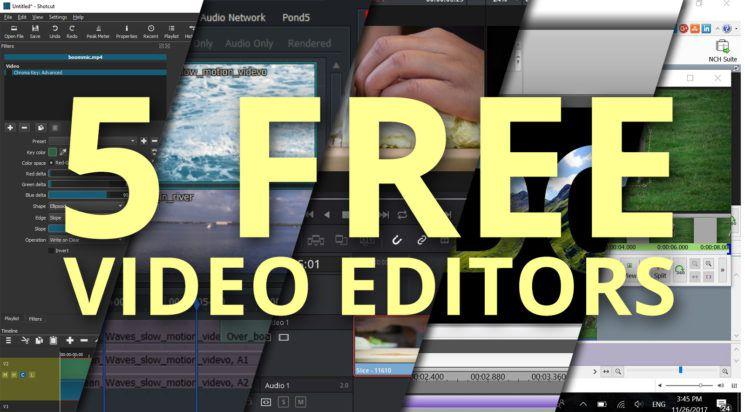
    5 Free Video Editors For Windows You Should Try Out

    Best video editing software’s are costly to get. Video editors like Adobe after effects, premier pro, final cut pro and others come at a cost. The adobe creative suite in itself comes at a monthly subscription.

    To have a professional video editing software, one has to invest a lot. Because of the high cost involved in getting a professional video software, finding the best free video editing software should be a core part of a business or any individual who wants to create winning content with videos.

    Alternatively, there are free video editors available that can serve your purpose for professional video content creation.

    In this article, I will talk about five of the best free video editors for windows you need to try your hands on. My compilation focuses on the most versatile editing software for videos that can serve your needs.

    While I take into consideration individual differences and needs, this article will provide the pro’s and cons of each video editor so you can choose your preference.

    Best Free Video Editors For Windows

    Below are the five best editing software for windows. All these editor software’s are free to use. There are free tutorials on all the editing software from the publisher’s website or you can source for tutorials on youtube on how to use each editing software if you are a beginner.

    Blender

    Blender is one of the best free editing software on the market. It is available on Windows, Mac and Linux. Blender is open-source and also free to use.

    The editing software was purposely designed for 3D animation, but it also comes with a very clean useful video editing. The video editor in blender is more than enough for your video editing needs.

    Blender allows you to perform basic actions like video cuts and splitting. It’s also used for video masking, thus making it one of the video editors due to the flexibility of its interface. Both beginner and pro-level users can be conversant with its interface.

    Features Of Blender Video Editor:

    • Live preview, Luma waveform, chroma vector-scope, and histogram displays.
    • Audio mixing, syncing, scrubbing, and waveform visualization.
    • Up to 32 slots of video layering, images, audio and effects.
    • Chroma keying or green screen effect
    • Speed control, adjustment layers, transitions, keyframes, filters and many more.

    Pros – Best for advanced users who are not scared of by all the features and interface.

    Cons – Most of the tutorials on blender focuses on 3D animation/Modeling. Tutorials on the video editing features are limited making it a little difficult for beginners to jump into the app.

    Davinci Resolve

    Davinci resolve is also one of the most advanced video editors on the market. It is available on Windows, Mac and Linux. Davinci has many professional features including its intuitive features.

    Davinci Resolve is known for its powerful colour correction feature. It can also be used for 2D and 3D titling for your videos. For all its powerful features, Davinci Resolve offers its full software at a cost, but if your video its a little more advanced, its free software is hard to beat.

    Features Of Davinci Resolve:

    • Advanced trimming
    • Multi-cam editing
    • Colour correction
    • Audio mastering
    • Chroma key

    Pros – User-friendly interface and incredible color correction

    Cons – Tutorials are very costly and its wide array of features makes it confusing.

    Openshot

    Openshot its entirely open-source video editor available for Windows, Mac, and Linux. Openshot comes with a very easy drag and drop interface, with excellent features like unlimited layers and audio mixing.

    Openshot although advanced but has a very user-friendly interface for beginners to easily use the software without external help.

    Features of Openshot:

    • Unlimited layers
    • Clip resizing, scaling, trimming, snapping, rotation, cutting, and video transitions with real-time previews of the project.
    • Image overlays, Compositing, and watermarks for copyright
    • 3D animated titles and effects, title templates, title creation, and subtitles.
    • Drag and drop, scrolling, panning, zooming, snapping and advanced timeline.

    Pros – Open source and unlimited layers.

    Cons – Limited video tutorials,

    HitFilm Express

    HitFilm Express is one of the freest used professional video editing software on the market. It is available for Windows, Mac and Linux. It comes with professional features a free editor would not be considered to have.

    Features like splitting, trimming, and audio editing effects make the app one of the powerful free software. The software comes with over 180 special effects to include in your projects.

    They offer tutorials on their platform based on well-known Hollywood films like star wars and all tutorials are very interactive and engaging for both beginners and advanced users.

    Features of HitFilm express:

    • Advanced cutting tools
    • green screen keying
    • Video and audio filters
    • Compositing tools
    • Layers and masking
    • 3D video support

    Pros – Free professional video editor

    Cons – Takes time to be familiar with its interface.

    VSDC Video Editor

    VSDC is a Windows video editing software which offers powerful editing features for video editing. The software offers both pro and free version. The free version is enough for editing your projects except you want more advanced features, either than that, the free version should be enough.

    Pros – Straight forward to learn with powerful features

    Cons – High cost of technical support and the software is only available for windows only.

    Conclusion

    Video is said to generate leads and customers more than text, thus video content creation has been the norm of the internet in recent times.

    Businesses and individuals always search for free video editing software that can be used to create their contents easily and professionally because of the high cost of acquiring professional software’s.

    In this article, I have shared with you five of the very best free video editing software’s that can be used for video editing in a professional way. Knowledge is not in the head of one, comment your free video editor in the comment section to help others.

  • How To Add Two Or More Twitter Accounts To Your Twitter App

    How To Add Two Or More Twitter Accounts To Your Twitter App

    Have you wished to keep your business and personal lives separate on Twitter? Or, do you want to have another account separate from your personal account away from friends on Twitter? Yeah! you are right- it’s not OK mixing business with personal life or pleasure.

    You can create a second or more account separate from your main account and just switch between them.

    Each account you create needs to have a different username but with the same email address except you want to use multiple email addresses each. It’s simple, just add a dot (.) or any character to the usernames and twitter will see it as different from your main account but with the same mail.

    Account creation can be done by visiting www.twitter.com or you can download the twitter app from the Android Mobile App or IOS.

    Creating Twitter Account On The Web

    For account creation on the web, go to Twitter’s homepage and click on the signup button. Follow the account registration process by entering your name, then proceed to enter your email address or phone number then press enter to go to the next step.

    Twitter will send you a verification message to your email or an SMS to your mobile if you used a number to register. Find and enter the code inside the verification code field. Press enter and set your password from the next screen.

    The next step is adding your photo and bio. If it is a business account, add the business logo to the upload profile field and add the business info in the bio field. Same way if it’s a personal account, add your profile image and a brief biography about you.

    Choose your interests by selecting the interests listed, twitter will then suggest accounts you might want to follow. You can follow as many people you want in this step,

    Twitter auto sets usernames for registered accounts. If the username provided does not interest you, click on the profile icon and select Settings and Privacy. Click on the username at the top of the newly opened window and type your preferred username.

    The username should contain only letters, numbers, and underscores with no spaces and must be up to 15 characters or less. Click the save changes to save the details.

    Adding Two Or More Twitter Accounts On Mobile

    In this section, we will be looking at how to create two or more Twitter accounts using your mobile app.

    Open your Twitter app and tap on your profile icon in the top left corner. On IOS, tap on the ellipsis icon (), while Android users will tap on the small down arrow.

    Tap on the Create New Account, and type in the required details. Now Snc Twitter to your contacts and start following people you would want to follow.

    Using Multiple Account On The Web

    Now you have both accounts set up, both accounts can be switched between. When on the website, you can’t use both accounts in the same browser. If both account are needed at the same time, you would have to open both accounts in two separate browsers.

    Using Multiple Accounts On Mobile

    On mobile, switching between two or more account is very easy. Sign in one account as the app is opened, and tap on your profile account. Now select the ellipsis/down arrow icon.

    Select the ‘add an existing account’ and login to your second account. Now, both accounts will be linked to your phone. Every time you open your Twitter app, you will see both accounts linked and you can switch between them as much as you want.

    Deactivating A Twitter Account

    If you decide you no longer need multiple accounts anymore, there is an option to deactivate. Sign in to the account you no longer need, and click on your profile icon and select ‘Settings and Privacy’.

    Scroll down to the button of the window and press on Deactivate your account. Enter your twitter password to confirm.

    Conclusion

    There are a lot of people who wouldn’t love to mix their personal lives to their business. Having a single Twitter account that blends both business and entertainment is not encouraging thus, the need for multi-twitter accounts.

    In this article, I have elaborated on the steps to have two or more twitter accounts on your twitter mobile app.

  • How To Install Channels On Your Multi TV Decoder

    How To Install Channels On Your Multi TV Decoder

    Multi TV is a privately owned satellite television station in Ghana. Multi TV offers varieties of programs including sports, news, entertainment and education in digital format. The satellite television is owned by Multimedia Group Limited and was established in 2009.

    Multi TV offers more than 20 TV and radio channels and is present in over 5 African countries. Below are some active TV and Radio channels on Multi TV as at 2020.

    TV Channels On Multi TV

    • Joy Prime
    • Adom TV
    • Joy News
    • DW English
    • Fire TV
    • Rock TV
    • Sweet TV
    • OB TV
    • Pent TV
    • TVT
    • Aseda TV
    • Ghana TV
    • Pan African TV
    • Cross TV
    • TV3 Ghana
    • ZTV Ghana
    • Fire TV 2
    • Precious TV
    • Royal TV
    • Kessben TV
    • Angel TV
    • Elijah TV
    • TV Xyz
    • Rhema TV

    Radio Channels On Multi TV

    • Joy 99.7 FM
    • Asempa 94.7 FM
    • Luv 99.5 FM
    • Adom 106.3 FM
    • Hitz 103.9 FM
    • Nhyira 104.5 FM
    • Peace 104.3 FM
    • Citi FM
    • Atlantis Radio
    • Kessben FM
    • Angel 96.1 FM
    • New Mercury 91.5 FM
    • Fox 97.9 FM
    • Radio Lome
    • Radio Kara

    Multi TV Installation Guide

    The direction for the satellite of Multi TV points to East. When fixing your satellite dish, you must ensure that it points to the east since the signal comes from that direction.

    The dish comes with an installation guide. Most at times, people offer the services of the dish installation but most people do it themselves. Multi TV has different decoders.

    In this post, we are going to look at “how to install channels on your Multi TV decoder” on some of the various popular decoders available.

    Syndicated Box Decoder

    1. Press Menu
    2. Navigate to Installation, and press Ok.
    3. Choose manual search and press Ok
    4. Press the green button on the remote to edit the frequency
    5. Select Modify and press OK
    6. Input 12522 and hit Ok
    7. Choose Polarization
    8. Press the Right Button on the OK to change to Vertical and Press OK
    9. Select SYMBOL RATE 27000
    10. Press On the BLUE BUTTON to save and exit OK to start scanning
    11. Move channel down knob to start the search
    12. Press OK to start scanning
    13. Press exit.

    Strong Box Decoder

    1. Press menu and Press on the Right volume button
    2. Input 0000 as password
    3. Select MANUAL SCAN and press OK
    4. Press the RED BUTTON on the remote and select transponder ASTRA 3A/3B
    5. Press the GREEN BUTTON to add TP list
    6. Input frequency 12522
    7. Go to symbol rate and input 27000
    8. Change polarization to V or H to make the bars change to green colour.
    9. Press Ok to scan.
    10. Exit

    Multi TV HD LI/HD Plus

    1. Press the Menu button on your remote
    2. Navigate to Installation
    3. Select MANUAL SEARCH and press OK
    4. Scroll down and select FREQUENCY
    5. Enter a Frequency number
    6. Move down and select SYMBOL RATE
    7. Enter a Symbol rate number
    8. On POLARIZATION, change to (V)
    9. Press Scan
    10. After the scan, you can go back and see the saved channels.

    Digital Combo Decoder Vi/Combo Decoder T2/S2

    1. Press the Menu button on your Remote
    2. Navigate to Installation and Press OK
    3. Go to SATELLITE SETUP and press OK
    4. Select MANUAL SEARCH, scroll down and choose FREQUENCY
    5. Enter a Frequency number
    6. Select SYMBOL RATE
    7. Enter a Symbol rate number
    8. Change Polarization to (V)
    9. Start scanning
    10. Press exit after completion.

    There are a lot Multi TV decoders out there of which I won’t be able to cover all but you can comment the type of decoder you use in the comment section and I will update the post to cover yours in future updates.

    Conclusion

    Scanning and installing of Channels in your Multi TV decoder are as simple as ABC. You don’t need the services of an expert to scan your decoder. In this post, I have taken you through some of the popular decoders available and how to search for channels in them.