Author: Emmanuel Boakye Yiadom

  • How To Send Photos On WhatsApp Without Losing Quality

    How To Send Photos On WhatsApp Without Losing Quality

    Whatsapp is known for reducing the quality of images shared and sent on the platform. Whatsapp is owned by Facebook Inc. and available for both IOS and Android devices.

    Most people have not been paying much attention to this but the majority of its users know about this image quality reduction. Default the app has been made to reduce image quality shared on the platform.

    I had an image with a file size of 1.1 MB after I shared the same image with a friend using the old default method of sending, the image was reduced to 34 Kb of file size. This dropped the quality of the image.

    Sharing or sending an image without losing its quality is very easy. What is needed to be done is to bypass the default of sharing a photo by sending it as a regular file to your contacts.

    In this article, I will show you how to send images on Whatsapp by maintaining the original file size. This process differs on IOS and Android.

    Sending A Photo On Whatsapp By Maintaining Its Quality (Android)

    This method works on all android devices.

    1. Open Whatsapp and navigate to the contact you are sending the image to
    2. Click on the plus icon or paper click. Do not choose a photo.
    3. Choose documents.
    4. Now click on browse documents and navigate to the stored location of the image you want to send. Select the image and send. This will send the image as a document file.

    The receiver will receive the image in a document format and the quality will be the same without compression. To simplify the procedure above, you can also use this enhanced method.

    • Click on the plus icon or paperclip in the chat.
    • Tap on Documents>Browse other Documents>Images>Camera.
    • Select the desired picture and send.

    Sending A Photo On Whatsapp By Maintaining Its Quality (iOS)

    The procedure above differs slightly with IOS users. Below are the steps to send images on Whatsapp without losing its quality on IOS.

    • Open Whatsapp and navigate to the chat you want to send the image
    • Select New Group on the drop-down menu list
    • Select Share
    • Select the image and on the sharing options, save it on iBooks.
    • Now, a shareable PDF file has been created. You can now send the image in PDF and the quality will be maintained without Whatsapp compressing the image as in the old way.

    Sending A Photo On Whatsapp By Maintaining Its Quality (Mac Or PC)

    If you are on Whatsapp web or have downloaded Whatsapp on your PC or Mac, follow below steps to send pictures in high quality.

    1. Open Whatsapp or Whatsapp web on your computer.
    2. Navigate to the particular chat you want the image sent to.
    3. Choose the share button
    4. Select Documents
    5. Choose Browse Document to enable you to navigate through your file manager.
    6. Select the image in the location it’s stored and send.

    Conclusion

    Whatsapp image comprehension is a headache to many who send images on the platform. A high-quality image will be reduced to a minimum size, which affects the quality of the photo.

    In this article, I have shown you that, it is always advisable to send images in a document file if you want to keep its original quality.
  • How To Protect Instagram Account From Being Hacked

    How To Protect Instagram Account From Being Hacked

    Instagram hack has been on the increase and many people are losing their hard built accounts with a lot of followers. Getting hacked on Instagram is a great loss especially when you are a business that drives sales through Instagram.

    A hacked account is forever lost to the hacker. In late 2018, over 500 users reported receiving a mail that their email accounts associated with their Instagram account have been changed.

    The hackers managed to get unauthorized access to the victim’s account and changed their emails connected to Instagram. Instagram hack has been a headache to its users and a lot of people are wondering how to protect their accounts from being hacked.

    So what can you do to protect your Instagram account from being hacked? In the below post, I will show you some important approaches to take when your account gets compromised and how to secure it.

    Immediate Actions To Take If Your Instagram Account Gets Hacked

    In early 2019, Instagram rolled out a new security feature called “my login info isn’t working” under the login button of the login page. If a hacker changes your password, you can use this option to gain control over your account.

    Steps to follow to gain access to your Instagram account when hacked using the new security function (my login info isn’t working):

    Option 1

    1. Press “my login info isn’t working” button if your password stops functioning.
    2. Type in your email or phone number associated with Instagram. Instagram will then send you a new 6 digit code for an account reset to allow you to regain access to your account.

    By following the above steps, your account will be recovered and ready for use. However, whenever someone logs in your account indirectly without your consent, Instagram automatically sends you a confirmation address to confirm it’s you.

    If you receive an email from Instagram alerting you of a Login or an email change which you are not aware of, click on the “revert this change” within the same email. This will help you recover your account.

    Most at times too, your account might be hacked but still, you are able to login to the account and perform your usual activities. Once you realize a change in your account usage, immediately change your account password to a more difficult one.

    5 Hints To Protect Your Instagram Account From Being Hacked

    1. Use a Strong Password – Hackers easily break lose passwords. Using a weak password can easily be broken or cracked. “Have I been Pawned” is a website used to check if your password has been stolen. A strong password is a password with a combination of six letters (capital and small), numbers, and punctuation marks. Security experts suggest a minimum of not less than eight characters.
    2. Two-Factor Authentication – Instagram has the option to enable two-factor authentication (2FA). With 2FA enabled, whenever you log in to your Instagram account, you will be asked to provide an SMS security code sent to your mobile number.
    3. Secured Email Account – Using an unsecured email account is like opening your door to thieves at night when sleeping. Your email is what you use for most of your social networks including Instagram. Hackers attack your email first, so it’s advisable to secure your email by using a strong password and 2FA.
    4. Revoke Access To Suspicious Third-Party Apps – Some third-party apps serve as a gateway for hackers to take over your Instagram account. Check and see to it that all third-party apps that have been given permission to access your Instagram are following the Term of Use of Instagram. If you notice any suspicious app, don’t hesitate to revoke its access.
    5. Logout of Instagram anytime you use a public device or shared device to log in to your account. This will help protect your account by falling into the wrong hands.

    Conclusion

    People are losing their accounts to hackers day by day. Instagram hack is on the rise as the day goes by. In this article, I have provided some immediate actions to take when your Instagram account gets hacked and also shared important hints to protect your Instagram account.

  • How To Download Instagram Stories On Mobile

    How To Download Instagram Stories On Mobile

    In early 2019, Instagram’s story grew to over 500 million daily users. This shows that over half of Instagram’s 1 billion daily users make use of Stories. Individuals and businesses use the Story feature to promote their business, educate or entertain their fans or to convert users to clients.

    Instagram stories willingly let Instagram users post videos and lovely pictures that vanish instantly after 24 hours. 

    We mostly come along to an interesting photo or incredible video on stories which we’d tenderly love to have but Instagram frowns on letting users download images and videos from other accounts for privacy reasons.

    More importantly, there are legitimate reasons for wanting to download images and videos from other people’s accounts which do not necessarily involve a breach of privacy.

    For example, you might want to save a video from a friend’s story which includes you or reuse a video that falls under your own business niche for business purposes.

    Today, we are going to look at the different ways you can follow to save your own stories and stories from other people’s accounts.

    Saving Your Own Stories

    As mentioned earlier, images or videos posted in stories have a time bomb of 24 hours. They disappear with no traces, however, you can access them via Archive or you can save and show them permanently as highlights.

    Stories saved in your Archive or Highlights can only be seen by you. To toggle Story Archive on, go to your Profile > Settings > Privacy and Security > Story Controls. Enable the save to Archive toggle.

    There is also a secondary option for saving stories to your Phone’s Camera Library. To save a single story or individual clip from your own account, here is what you do.

    • Go to your story
    • Tap on More
    • Press Save, then press save video.

    Your clip or story will be saved in your phones’ camera library.

    One may ask the need to save your stories on the phone. Saving stories on phone is useful if you want to share the same content on other social media sites like Twitter and Facebook.

    Alternatively, you can enable the option “Save to Camera Roll” at the Instagram story settings menu to automatically save your stories to your phone’s camera library.

    Saving Stories From Other Accounts

    For non-moving images or still images, Screenshot is extremely useful. After the screenshot, you can remove unwanted parts of the image by editing. However, screenshots don’t work for Videos.

    For video stories, we apply the use of third-party apps on Mobile devices. A lot of third parties are available that offer the same function. For tutorial’s sake, I will mention some of the popular apps available including, StoriesIG, Story Saver, Weynstag, etc.

    On Android devices, Story saver can be downloaded freely on Google Play Store. After installation, Open and log-in with your IG details. Once successful log-in, you can download stories from all the accounts you follow. The only drawback of Story Saver is the many ads served in the app.

    On IOS, download and install Story Reposter from the IOS app store. With the Story Reposter, Logging-in to the app is not necessary. You can search and download stories from users with their handle names. This app is free, but the only setback is the many ads they serve.

    Conclusion

    There are over a million Instagram photos and videos shared on Instagram stories daily. Since Instagram does not allow downloads on other people’s accounts, videos, and photos that catch our attention always vanish forever after 24 hours.

    In this article, I have provided some of the ways you can follow to download Instagram stories on your mobile device. If you also have any knowledge of the discussed topic, please feel free to leave a comment.

  • How To Block YouTube Ads On PC & Android

    How To Block YouTube Ads On PC & Android

    In early 2018, YouTube rolled out a new way of serving advertisements to potential users. Unskippable ads can pop-up and stay as long as 15 – 30 seconds. This in common is not a bug or an error but new way ads are adequately served to users.

    Sometimes it’s very annoying when watching an interesting video or clip and an unskippable ad just pop-up for about 15 seconds before the video continues.

    We can’t blame YouTube that much, because YouTube generates funds from Advertisers by promoting and serving their ads on videos. It’s very bad to watch an unwanted advertisement forcefully over and over again.

    Unendingly two or more unstoppable ads can be displayed in a particular video which is very annoying. If you have searched for a way to obstruct YouTube ads on both your Android and PC then keep following.

    How To Block YouTube Ad On Android

    1. By using an Ad-free Browser – YouTube ads can be blocked by using Ad-free browsers. Instead of using the YouTube native app, you can download one of the many Ad-free browsers like Brave browser, Ghostery Privacy Browser, AVG browser, and many more. These browsers come with a built-in VPN, ad blocker, tracker blocker, private browsing mode, etc. When the ad-blocker is enabled, it will block all Commercial ads on any website including Youtube.
    2. By using an Ad-blocker app – Ad-blocker apps do not work in the Youtube Native app but there is a way to get around it. Download and install Adblock application for android. To block ads, open the YouTube app, and search for the video you want to watch. Click share below the video and select AdBlock. This will play the video without any advertisement. This trick can work on many Ad-blocking apps.

    How To Block Youtube Ads On PC ( Chrome and Firefox)

    On the computer, YouTube is accessed via web browsers like Chrome and Firefox. Chrome and Firefox provide a lot of free extensions to extend the capabilities of their service.

    There are a lot e of efficient extensions to block ads on both browsers using ad blockers. Below are the steps to install ad blockers on both browsers.

    1. Google Chrome – Chrome offers a lot of extensions to enhance the browser features and interact more with the content presented to you. For our case, we will need to install an ad-blocking extension. To install an extension, follow the steps.
    • Open Chrome and navigate to the menu
    • Go to More tools and click on Extensions
    • In Extensions, Click on Main Menu at the left-hand side of your screen. Find and click on the Open Chrome Web Store
    • In the search box, type Adblocker Youtube. A list of Youtube ad blockers will show. Install any of them.
    • You can now browse Youtube with no ads.

    2. Mozilla Firefox – Firefox also offers browser extensions to enhance the capabilities of the browser. There are a lot of Youtube Adblockers to block ads on Youtube. Follow the steps to install an extension in Firefox.

    • Open Firefox and Navigate to Menu. Select Addons.
    • In the search bar, type Ad Blocker Youtube and press on Search or enter.
    • You can select from any of the listed AdBlockers.
    • Press the Add to Firefox to download the Extention.
    • When you are prompted to Accept Permission, click on accept. This will install the add blocker and stop ads on Youtube.

    Conclusion

    Ads can cause inconvenience and make Youtube watching very sour. Youtube is very addictive and during fun time watching videos, anyone will not accept an interruption.


     To get rid of the ads on both your Mobile and Computer, you can use an Adblocker extension or application to block the ads.

  • Some Of The Things That Cause Your Phone’s Storage Memory To Always Be Full

    Some Of The Things That Cause Your Phone’s Storage Memory To Always Be Full

    The smartphones being developed and launched of late makes at least a default ROM storage of 16 gigabytes of space with system apps and phone ROM taking about 4-gigabyte space from the 16 gigabytes.

    The remaining 11 gigabyte becomes the phones internal storage for your files and documents. Most devices extend support for external storage advancement up to 256 gigabytes.

    To many, this internal storage looks good and manageable to them but to their surprise and shock, the phone after use for some time always prompt them of memory full. One may not have more files on their internal storage but still, have memory full problem.

    This problem is not caused by the files on your internal memory though sometimes the number of files stored there can lead to memory full, these particular ones are far from that.

    This problem does not only occur in 16 gigabyte internal-only devices, but 32-gigabyte internal memories also experience the problem.

    Below are the things that cause instant drains to your phone’s internal memory.

    Huge Operating System

    The 16 gigabytes may seem OK and satisfactory but if your phone’s operating system is very large, it will cause memory full in the future. Mostly some devices Operating System takes up 4 – 4.5 gigabytes memory from the 16 gigabytes. This leaves you up to 11 – 10.5 memory.

    System updates will be coming to fix patches and update your previous Operating System. Note that, these updates take up space, so the regular you make those updates, the more your memory fills up.

    Text Message

    It will shock you to know how Text messages take up memory. Most at times, I go to settings > Apps/App info to check up applications taking up storage spaces. I was shocked to see the storage space my regular messaging app was consuming.

    What I will love to see is, Android/IOS should add encrypted cloud storage features for Messages so that when we delete our messages to free up space, we can be able to access them anytime we want in the cloud.

    Facebook App

    Facebook’s main application is one of the consuming storage apps. If you don’t have much space that can accommodate the application, I will advise you to use the Lite version. You can check how much space the app takes by going to Settings>Apps/App info.

    Huge Media Files Hidden In Strange Places

    Using your device’s internal File Manager won’t allow you to see these huge media files hidden at the root of your device. Download external file managers that can be used to see details of files and folders stored on your device’s internal memory.

    I will personally recommend Es File Explorer because of the wonderful features it offers. It provides you with a Space Analyse feature that gives detailed usage of space by apps. This helps you discover huge media files that are of no importance hidden and taken up space.

    Installing Apps Without Deleting Unused ones

    We are all found wanting with this act. Most at times, there are more applications that have not been opened from the day of install. I personally find apps downloaded but have never opened since the day of install for more than a month old but still on the phone.

    We install more apps to add to the ones installed but have never been opened. Before installing new apps, delete the apps that have no relevance or unused before installing new ones.

    Auto Update

    Automatic updates on your device silently take up more storage without prompt. Apps updating silently in the background override data to the existing ones. Some of the new updates come with their own size and add up to the existing ones which takes much space.

    Conclusion

    Memory full is a headache we always face, most of the memory problems happen due to the highlighted problems talked about in this article.

  • Best 5 Websites To Learn Adobe Photoshop 2020 From

    Best 5 Websites To Learn Adobe Photoshop 2020 From

    Adobe Photoshop is a raster graphics editor developed by Adobe Inc. Photoshop is available for Windows and Mac users. The initial release date was on February 19, 1990.

    Uses Of Photoshop

    Photoshop can be used for any purposes of which some are highlighted below:

    • Graphics Creation
    • Pattern and Texture Styling
    • Website Designing
    • Image writing
    • Picture Retouching
    • Cover photos

    Photoshop can be used for so many purposes depending on what the designer wants to use it for. The software is popular because of the wonderful features it possesses.

    Photographers, designers, web developers, filmmakers, and others use Photoshop to complete their final projects in a professional way.

    Features Of Adobe Photoshop

    1. Photoshop Layers – Layers gives you more control of your design. Layers make the design very easy because unlimited edits can be made to each layout of your design.
    2. Selection Tools – Making selections on an object.
    3. Pen Tool – Pen tool is one of the most used tools in Photoshop. It is used to draw paths together with an anchor point. It can be used to creatively draw shapes and edit shapes to a designer’s liking.
    4. Shapes – Shapes can be used to add objects to our document.
    5. Vector mask – For creating masking portions of an object
    6. Slice Tools – The slice tool is used by web designers to speed up the loading time of pages. It slices images to speed up loading time. With CSS the slice tool is not mostly used but it’s still popular.
    7. Retouching tools – As the name suggests, it is used to edit raster images and correction of images.

    There are so many features of Photoshop but few are listed above for reference. With the popularity of Photoshop, a lot of people have the interest to learn photoshop but don’t know where to start.

    Websites to learn Adobe Photoshop from

    Today in this article, I will show you the 5 best websites you can learn Photoshop 2020 from.

    Adobe

    Adobe provides free online courses from scratch to pro level. If you have no experience in Photoshop, I will recommend Adobe Photoshop lessons for you. I personally used Adobe’s video series on Photoshop to equip myself in mastering Photoshop.

    SkillShare

    Once you are done with the basics of Photoshop, you can head over to SkillShare to improve your skill. SkillShare provides comprehensive lessons in over 13 hours of video lectures called The Adobe Photoshop CC – Advanced Training Course.

    If you are a beginner in Photoshop, first go to Adobe to learn the beginner course before heading over to SkillShare.

    LinkedIn Learning

    Photoshop is also used for web designing. LinkedIn provides Photoshop For Web Design course in 2.5 hours video lecturing time. If you wish to use Photoshop to improve on your Web Design skills, LinkedIn Photoshop for Web Design course is for you.

    Udemy

    There are over 1000’s of courses at Udemy on Photoshop from beginner to Pro level. Udemy provides both free and paid courses. As a beginner, you can access some of the free courses and then advance to Pro level with some of the paid courses.

    Photoshop Cafe

    Photoshop Cafe provides free tutorials on Photoshop. It’s very similar to lessons from other sites but they make sure their language used is simple enough for beginners to have easy understanding.

    Beginners can go to Photoshop Cafe to learn at their own pace.

    Conclusion

    With the popularity of Photoshop and designers’ choice, acquiring a skill in Photoshop is not a waste of time. Photography, Web, and Graphic Design are one of the Lucrative skills in the world now.

    In this article, I have covered some of the best websites you can learn Photoshop from beginner to Pro level.

  • Ways To Change Fonts On Android Without Root

    Ways To Change Fonts On Android Without Root

    Fonts are a graphical representations of text that may include a different typeface, point size, weight, color, or design. I graphic design, fonts are used to produced wonderful designs.

    There are many and different kinds of fonts. Many applications have default fonts and sizes to create documents and designs. Though default but can be changed and tweaked to a user’s liking.

    Reasons Fonts Are Used

    Fonts are used to add style to a web page, document, or graphical designs. Simply put, they are used to set or match the tone of a text-based on the contents. Not just the appearance only, Fonts affects readability depending on the medium.

    As a Graphic design, we take due diligence with the type of fonts we use to provide professional designs that communicate our design to people.

    Default fonts and used by popular Applications and Operating Systems.

    • Google Doc – Arial
    • Microsoft Excel – Calibri
    • Microsoft word – Calibri
    • Microsoft Powerpoint – Calibri
    • Notepad – Consolas
    • Wordpad – Calibri
    • Windows OS – Segoe
    • Android – Roboto
    • iPhone IOS – San Francisco

    Each font on any application or operating system can be changed or tweaked to a user’s liking.

    What Is Root?

    Rooting in Android is the process whereby a user gets complete access to everything in the Android Operating System, to edit, change, or modify system files.

    Rooting has its own advantages and disadvantage of which we will cover in another article next time.

    As said, with root access, you can easily modify and change system files. Fonts can be easily downloaded and installed when using Root access in Android.

    This article is not about root, I will show you how you can install fonts using an unrooted android device. Keep following.

    Built-In Android Fonts

    Many phones have the ability to change fonts right on the phone. There is some selection of fonts to switch between. Original phone brands like HTC, LG, Samsung, and Nokia running Lollipop and above have this inbuilt feature.

    The steps below might differ in the different brands mentioned above but most likely synonymous.

    Go to settings>Display>Fonts, if your Phone is supported, there will be a few fonts to choose from.

    Launcher

    If your phone does not support the in-built font changer, there is no cause for alarm as you have not run out of luck. Android launchers have the ability to switch/change fonts on non-root users.

    The only set-back is, the font will only affect the launcher only but not the entire system.

    Launchers I have used personally that supports font changing includes:

    • Apex Launcher – includes lists of fonts to choose from
    • Go Launcher – One of the best launchers available.

    Conclusion

    Without root access, sometimes making changes to some features of our mobile device is restricted. In this article, I have shown you some of the ways you can use to change your fonts.

  • Best Ways To Clean A Smartphone To Prevent Coronavirus

    Best Ways To Clean A Smartphone To Prevent Coronavirus

    The novel Coronavirus popularly referred to as Covid-19 is an infectious disease caused by a newly discovered Coronavirus. The virus was first discovered in Wuhan – China.

    How Coronavirus Spread

    In recent statistics, 18.4 million confirmed cases of coronavirus exist worldwide. 11 million people have recovered from the virus and there have been 692 k deaths worldwide.

    The virus since the outbreak is said to be spreading at a fast pace within a short time. The Covid-19 spreads from person to person in close range. Droplets of body fluids like Saliva or mucus, from an infected person, can be dispersed in the air or on surfaces when coughing or sneezing.

    When other people come into direct contact with these droplets or hold a surface that is infected and mistakenly touches their face, they will automatically get infected.

    A recent study by scientists states, coughs and sneezes from an infected person can stay suspended in the air for almost 10 mins. It is not yet known how long the virus can stay outside a host.

    Getting in close contact with an infected person puts you at risk. A particular concern is on transport, looking at how the virus can be transmitted, transport is of major concern.

    The close range of how people sit in transportation mediums like cars, motors, airplanes are very disturbing.

    Many countries laid out guidelines on how to curb the spread of coronavirus. Some put out strict adherence to the guidelines in order to curb the spread of the deadly virus.

    Schools, Churches, Mosques, and all other social gatherings were banned. Curfew/Lockdown were imposed on citizens in order to halt the spread of the virus.

    Transportation sizes were reduced to halve capacity in order to ensure a 1-meter distance between passengers.

    How To Protect Yourself From The Virus

    • Always be in a nose mask – You might not know who had used your location or route, without being in nose mask puts you in great danger
    • Wash your hands with soap under running water or use an alcohol-based sanitizer
    • Avoid crowded areas or meetings.
    • Always ensure there is a 1-meter distance between you and any other person.
    • Stay away from people without a nose mask.

    Since Covid-19 can easily spread from person to person and on surfaces, our mobile phones also need to be cleaned properly to avoid the virus.

    Ways To Clean Your Smartphone To Prevent Coronavirus

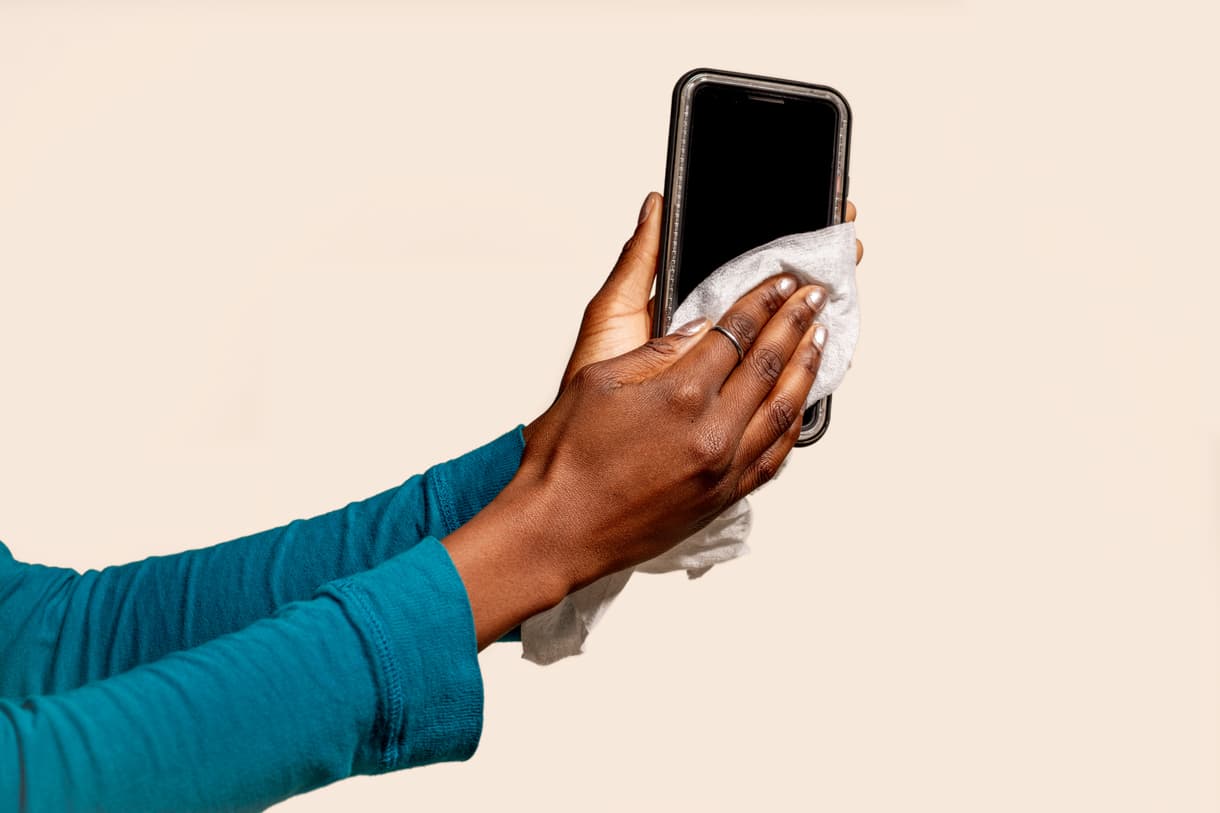
    1. Disinfecting wipes – Use disinfecting wipes to clean your smartphone. Some people consider using alcohol sanitizers to wipe and clean their phone but that is the wrong way. Using alcohol to clean your phone can damage your touch screen and ports. Moreover, it can corrode the coating design on your device.
    2. Mobile Sanitizers – Mobile sanitizers like Mobiwash, Rnaux, Cleaning kit, and others can be purchased and used to clean your device. Special cloths are added to the sanitizers to be used. Avoid the use of other cloth in cleaning your device.
    3. Special Cloth – Use a micro-fibre cloth and soft linen free cloth to clean your mobile device.

    Conclusion

    Coronavirus has changed all aspects of life and how we live totally. Your phone is like your third hand and needs to be regularly disinfected too. Until Coronavirus leaves the human race, your health is at your own hands. Practice the safety precautions in order to stay safe from the virus.

    Follow the guidelines provided to clean your mobile device in the safest way.

  • How To Delete Your Zoom Account Permanently

    How To Delete Your Zoom Account Permanently

    Zoom is a cloud-based peer-peer online video telephony and online chat service. Zoom is an American Communications Technology Company headquarter in San Jose, California.

    Zoom is popularly known for the numerous features it offers, in terms of Video Conferencing. Its founder is Eric Yuan and was founded in April 2011. Zoom is a cross-platform software. You can download Zoom on your Android and iOS stores. It also offers browser extensions.

    Features Of Zoom

    Zoom is a leading Videotelephony Service. Their wonderful services have garnered the popularity it is enjoying now. Most Businesses and enterprises use Zoom to organize their day-day virtual meeting. Below are some of the features of Zoom.

    • HD video and audio calls – The HD video and Audio call support allows classic webinars to be produced. Videos and audios are clear and well understood. This feature is what makes Zoom stand out and popular.
    • Group Collaboration Tools – Powerful group collaboration tools are provided to enable you to work more efficiently with others. Whiteboarding, Screen sharing, Remote access, Easy Content Sharing are all part of the group collaborating tools.
    • Easy Meeting Facilitation – One-touch controls, Host Controls, Easy Invites, Interoperability support enhances facilitation
    • Access robust security solution throughout
    • Inbuilt Screen Sharing tools – Screen can be shared with your external screen devices including your T.V.
    • Team chat – Team is able to chat which helps a lot when you are working on a project or assignment.
    • Inbuilt recording and transcript and many more.

    Uses Of Zoom

    Zoom can be used for many purposes. I share with you some uses of zoom below.

    1. Collaborative working – Zoom meeting is known for its wonderful collaborative working uses. You can collaborate with colleagues or teammates on projects or assignments virtually to produce satisfactory results.
    2. Training – Training services can be offered to clients, students or teachers, and everyone else. This solves the problem of the distance barriers between people living in different geographical areas.
    3. Client Presentations – You can offer presentations with clients at the comfort of your home, office, or any other place of convenience.
    4. Sales Meetings – Business sales meetings can be done virtually.
    5. Board Meetings – I remember our manager who had a board meeting with us on Zoom whiles he was away on holidays outside the country. It was successful just like as He would be there.
    6. Technical Support – Support to clients that do not demand physical work can be done using Zoom in a virtual assistant.

    Why Use Zoom?

    People and all-size Businesses choose Zoom for their day-day services because of the below reasons.

    • Simple to Use
    • Cost-effective
    • Very scalable
    • Reliability

    All industry players try harder and put more work into Privacy Protection. With the popularity of Zoom and the number of people interest in using Zoom day by day, one might see the need to delete their zoom account due to the problem of Privacy.

    If you see the need to delete your Zoom account due to privacy or any other reason, the following are the steps you can follow to delete your Zoom account permanently.

    Deleting Your Zoom Account Permanently

    1. Login to your Zoom account
    2. On the top right corner, click on the profile image/icon in the top right corner.
    3. On your profile page, scroll to the bottom and press on sign me out from all devices.
    4. Login back to your account and navigate to your profile page once more.
    5. Under the Admin section on the left section, click on the Account Management.
    6. Select the Account Profile.
    7. Click on Terminate my account.
    8. A confirmation dialogue box will appear. Choose Yes.

    After performing this, your account will permanently be deleted from Zoom.

    Conclusion

    There are many reasons as to why people permanently delete their account from websites and services. The major reason is mostly about privacy or other personal reasons. If you want to delete your Account from Zoom permanently, read the article and follow the steps promptly.

  • Safety Precautions To Take When Using An Online Dating Application

    Safety Precautions To Take When Using An Online Dating Application

    The number of people using online dating apps and websites is increasing rapidly day by day. According to Pew Research, an increasing number of people use dating apps with the mindset of meeting their true love or soul mate.

    Harry Reis, Professor of Psychology and Dean’s Professor in Arts, Sciences, and Engineering at the University of Rochester says, “Online dating is not for people easily discouraged or soft-hearted people”.

    As the saying goes, “Before you meet a handsome Prince, you’ve got to kiss a lot of toads“. This quote applies to Online dating in my view. In online dating, before you will meet the special someone, there are few fakes you will meet.

    If you have it in mind to use an Online Dating App, below are guidelines to follow to keep you away from swallowing a lot of toads.

    Suspicious Account Holders Actions/Behaviours

    • Financial Assistance – When a mate you just met a few days ago starts to seek for financial assistance in any way, mostly because of a sudden personal crisis, be on alert.
    • Vague answers to specific questions
    • Claims of being in abroad but currently working, living and traveling abroad
    • Excessive use of romantic and complementing on you in communication too early.
    • Requests your home address or work address in the pretense of sending you gifts.

    How To Stay Safe Using Online Dating Apps

    • Don’t Connect With Suspicious Accounts – Before connecting with people, make sure to check their bio, social media accounts, if mutual friends are connected, profile pictures. If you realize the person has only 1 picture and different pictures all together, be suspicious. At least the profile picture should correspond to the numerous pictures available.
    • Confirm An Account Before Sharing Personal Information – Never share your personal information including, Social Security Number, Credit Card Details, Bank account, Home address, and other personal stuff.
    • Reject Requests For Financial Help – No matter how convincing, moving, and sad words from someone maybe, never badge into offering financial help in online Dating Sites.
    • Video Chat Before Metting Someone – Video chatting before meeting someone you met online is very important. It makes you see the person virtually to identify him/her when you meet physically.
    • Schedule Meetings In Public Places – When there is the need to meet physically, always choose public places as it safer there.
    • Tell A Friend Where You Are Going – Never hesitate to tell a friend or someone closer to you where you are going. If things don’t go well, at least someone may know your whereabouts.
    • Background Checking – Before accepting to go on a date, do an excessive background check. Check all social media platforms if you can see the relevance of the person.

    Risks Involved In Online Dating

    1. Verbal Harassment – Many people with different characters are users of Online applications and websites. Some people intend to harass people verbally on the platform.
    2. Emotional abuse – More people have it in mind that, so far as it is about dating, everybody available on the platform seeks a relationship. With this in mind, people take advantage to emotionally abuse others.
    3. Fraud – When people realize you are wealthy on the platform, they create stories about an unfortunate incident that has happened to them to extort money.
    4. Spam – synonymous with fraud.
    5. Phishing – Unwanted emails sent by people using popular dating sites name in return for you to divulge personal information.

    If you realize any suspicious account with fake details or another motive mentioned above, instantly report the account or block it.

    Conclusion

    With the interest in Online applications and websites increasing day by day, I have put together safety precautions to consider when using online applications. Follow the guidelines provided and play it safe on the system.