Category: Guides

  • How to Protect Your Snapchat Account from Hackers

    How to Protect Your Snapchat Account from Hackers

    Snapchat has become one of the most popular social networks around. Its popularity also means that hackers are on the lookout for ways tto gain access to your account for their gains.

    In this guide, we will tell you how to protect your Snapchat account from hackers so you can keep your private life as private as possible.

    About Snapchat

    Snapchat is a social media app that can be accessed through any Apple or Android device. It was created in September 2011 and has been one of the most popular apps since it launched.

    With over 100 million daily active users, it allows users to send and receive pictures, videos, and messages. These posts are called snaps.

    Users can set a timer on their snaps which will determine the length of time the receiver can view the post before it will disappear. Users can also add text or drawings onto their snaps.

    Why protecting your snapchat account is important

    In general, Snapchat is a fun way to keep in touch with friends and family. However, there are some reasons why you might want more control over your account.

    • One reason is that if your account gets hacked, the hacker will have access to all of your data, including those photos and videos you shared.
    • You won’t be able to access your account again and you will loose it completely. So if you have any vital data, you are at risk of getting it exposed.

    How to protect your snapchat account from hackers

    Below are some methods you can follow to protect your snapchat account from hackers and keep it as safe as it can be.

    Turn on two-factor authentication

    Ensuring two-factor authentication is activated on your snapchat account should be a must. Two-step verification let user to access another device or app before they can be logged into their snap making you aware whenever thete is any odd login. It makes logging in less convenient and more secured.

    To setup two-factor authentication on your snapchat account,

    1. Log into your Snapchat account and press the ghost icon at the top corner on your profile page.
    2. Click on settings
    3. Scroll throught settings and select “Two-Factor Authentication”.
    4. Click “Continue.”
    5. Select ‘Text Verification’ or ‘Authenticator App’ and then follow the instructions to enable.

    Set up a strong password

    Another step in protecting your Snapchat account is setting up a strong password. Dont just use any weak password that can be easily guessed.

    Follow these tips for creating a difficult-to-crack password:

    1. Use upper and lowercase letters, numbers, and symbols (e.g., Qwerty123 or !@#$%).
    2. Mix it up with at least one letter, number, and symbol (e.g., qwerty123 or R8sE83k).

    Be careful with malicious links

    Many people rely on their social media accounts for business and personal use. This can make them a target for hackers. To keep your account secure, you should be careful when clicking links or downloading apps to your phone.

    You should only download new apps that are recommended by friends and family, never click on links in emails, messages, or posts, and never enter your login information in an email that you weren’t expecting.

    Don’t add strangers to your friends list

    Keep your account as private as possible by not adding strangers to your friends list, and instead adding people you know or who are your friends on other social media platforms. This will make it more difficult for someone else to hack into your account.

    Use the most recent updated version of the app

    The app regularly update their system to fix bugs and also their security system. Updating your app to the latest version helps with security and thus, its advisable to do so whenever there is a new update.

    Conclusion

    Snapchat is a really fun way to stay connected with friends and family. Unfortunately, if you don’t take precautions, your account can be compromised by hackers. To make sure your account stays secure, remember the above steps.

  • How to Check Data Balance on MTN, Airteltigo, Vodafone and Glo

    How to Check Data Balance on MTN, Airteltigo, Vodafone and Glo

    If you have been wondering how to check your mobile data balance on MTN, AirtelTigo, Vodafone or Glo, then read on to find out more. Its sometimes necessary to check data balance when making an important download in order not to get stucked on the way.

    About MTN, Vodafone, AirtelTigo and Glo Ghana balance check

    They are methods provided by the various network providers for their customers which can be used to check data balance in order to know how much is available for use and if there is the need for a top up.

    How to check your data balance on MTN Ghana

    Follow these steps to check your MTN Ghana data balance, using the MTN Ghana USSD code format.

    • On your Android or iOS smartphone, open your call dialer.
    • Dial *124#, and send.
    • You will get a pop-up containing all your current active data bundles and other balances.

    You can also use another USSD code to check all your active data bundles on the go.

    1. Dial *138#
    2. Choose option 1 (proceed to buy bundle)
    3. Select 99 (more)
    4. Choose option 7 (more)
    5. Select option 3 (check bundle balance)
    6. You will get a pop-up and also a text message from MTN, containing all your current active data bundles.

    How to check your data balance on Vodafone Ghana

    Follow these steps to check your Vodafone Ghana data balance, using the Vodafone Ghana USSD code format.

    1. On your Android or iOS smartphone, open your call dialer.
    2. Dial *124#, and send.
    3. You will get a pop-up containing all your current active data bundles and other balances.

    You can also use another USSD code to check all your active data bundles on the go.

    1. On your dial pad, dial *126#
    2. A popup will show on your screen which contains all your available data bundles.
    3. You will also receive an SMS from Vodafone contains your data balance.

    How to check your data balance on AirtelTigo ghana

    Follow these steps to check your Airteltigo Ghana data balance, using the airteltigo USSD code format.

    1. On your Android or iOS smartphone, open your call dialer.
    2. Dial *124#, and send.
    3. You will get a pop-up containing all your current active data bundles and other balances.

    You can also use another USSD code to check all your active data bundles in separate.

    1. On your dial pad, dial *504#
    2. A popup will show on your screen which contains all your available data bundles.
    3. You will also receive an SMS from airteltigo which contains all your data balance.

    How to check your data balance on Glo Ghana

    Follow these steps to check your Glo Ghana data balance, using the Glo USSD code format.

    1. On your Android or iOS smartphone, open your call dialer.
    2. Dial *124#, and send.
    3. You will get a pop-up containing all your current active data bundles and other balances.

    You can also use another USSD code to check all your active data bundles in separate.

    1. Dial *555# on your mobile phone.
    2. Look through the menu that pops up and select option 8 (No. and Balance)
    3. In the next menu, select option 3 (Check your balance).
    4. Then select option 3 again and all your active data balance will be shown to you.

    Conclusion

    I can understand how confusing it can be for you in your search for how to can check your data balance in Ghana. The above process can be your guide now with less stress.

  • Vodafone Unlimited Weekend Data Offer: How to subscribe & Tips

    Vodafone Unlimited Weekend Data Offer: How to subscribe & Tips

    Vodafone has come up with an offer to provide Unlimited Weekend Data usage. Now you don’t have to compromise with your mobile data and can enjoy streaming, sharing or uploading your favorite contents on weekends.

    But how to subscribe? Don’t worry, we are here to help you in this regard. We will tell you how you can subscribe Vodafone Unlimited Weekend Data Offer and get the most out of it.

    About Vodafone unlimited weekend data offer

    Vodafone unlimited weekend bundle is a supplementary bundle for Vodafone customers which valid during the weekends, starting from Saturday 00:01am to Sunday 11:59pm.

    Why should I subscribe to this service

    The weekend bundle is different from the regular weekdays bundle. It has a bigger bundle offer with low fees compared to the regular bundles and can be used for your big downloads whiles your regular weekdays bundle stays put.

    What to know

    The weekend unlimited bundle is mostly designed for customers on the broadband who are eligible for browser, streamer, webmaster, downloader and office plans for a fee of GHS20 only.

    However, if a non broadband customer wants a weekend bundle for their regular activities, they can subscribe to the BOSSU weekend offer which gives you 5 gigabyte for GHC5.

    How to subscribe to Vodafone BOSSU weekend offer

    To subscribe to the BOSSU weekend offer,

    1. Dial *5588# to access the menu.
    2. Select option 3 (Buy BOSSU Weekend).
    3. These offer gives you 300 minutes to all networks and 5GB data for your weekend use.
    4. Confirm your subscription and make your payment either with your credit balance or with Vodafone cash balance.
    5. A notification will be sent to you for a successful registration.
    6. This offer is GHC10.

    How to subscribe to Vodafone unlimited weekend offer

    Customers on the broadband and eligible on browser, streamer, webmaster, downloader and office plans who wants to subscribe to the weekend unlimited must have an active package in order to subscribe for the unlimited weekend bundle.

    To subscribe,

    1. Dialing *900# on their Vodafone number.
    2. Select option 1 and then option 4 in the next pop up.
    3. After that, you follow the next prompt in choosing your offer and then you make your payment.
    4. Make payment either with your credit balance or Vodafone cash account.
    5. This offer is GHC30 and you will enjoy unlimited browsing throughout the weekend.

    Notable tips

    • Customer on the unlimited weekend bundle will enjoy a truly unlimited browsing experience within the validity period
    • After Sunday 11:59am, the customer will continue using from their standard bundle and continue with the unlimited during the weekends.
    • Unlimited data cannot be rolled-over or moved onto a Vodafone mobile number. When it finishes, you can then subscribe for a new one.
    • Customer can view the unlimited data usages via USSD code, My Vodafone App, Vodafone official website or can call retail centers.

    Conclusion

    The Vodafone weekend unlimited is great for your weekend streams and downloads. it doesn’t affect your regular bundles and therefore, its a great offer to subscribe for.

  • How to Take a Screenshot on Onlyfans

    How to Take a Screenshot on Onlyfans

    If you use onlyfans, you might be wondering how to take screenshots on the app, as there isn’t an option to do so in the app’s settings.

    This article will show you how to take a screenshot on onlyfans, so you can then share these images with other users and also use them in your posts.

    About Onlyfans

    Onlyfans is an adult-oriented social media site that offers paid subscriptions for exclusive content. You can use this site to upload your own content, or create it with others in the Onlyfans community.

    Onlyfans also lets you interact with other members through polls, private messages, and comments.

    How to screenshot on onlyfans

    Even though the rule says no pictures or videos of others works outside their system, there is no mechanism to prevent taking screenshot.

    If you are using an android phone or iPhone and you want to take screenshot on onlyfans,

    1. Login to your onlyfans account using chrome or any other recognised browser.
    2. Locate the picture you want to snap and hit on it for a full view.
    3. If your phone has an internal screenshot system, you can press the down volume and the switch button and a shot will immediately be taken.
    4. Other phones also takes their shot when you press the home button and the down volume at the same time.
    5. Depending on how your phone takes its normal screenshot, you can use that.

    On a laptop or computer,

    1. Open chrome or any other recognised browser and visit https://onlyfans.com.
    2. Login with your credentials and locate the picture you want to snap.
    3. Now on your PC, you can right click on the picture and “SAVE AS” in any folder you want on your pc.
    4. You can also press CTRL+P and save the image as PDF on your pc.

    NB: All the methods above will easily save any image you want to screenshot on onlyfans.

    Will you be banned if you take screenshot on OnlyFans?

    It’s in the terms and conditions that all of your content must be original and not shared elsewhere so if you share contents outside, you are breaking rules but you will not be banned because, no administrator will know whether you have made a screenshot or not.

    Conclusion

    Most users onlyfans loves to share their activities as well as that of others on different social media platforms in order to build more followers for themselves.

    Thus, its sometimes worth it taking screenshot of your account. However, note that, you are somehow breaking the rule.

  • How to Discover New and Interesting Places Near You With Google Maps

    How to Discover New and Interesting Places Near You With Google Maps

    Google Maps has become the go-to application for anyone looking to find directions to their favorite restaurant or store.

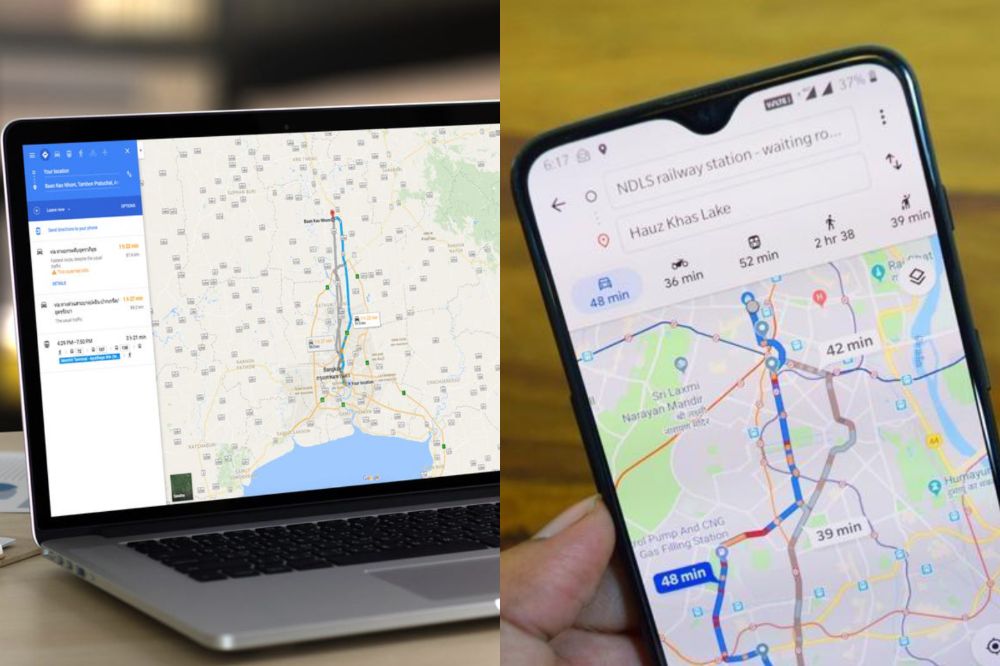
    But it can also serve as a handy tool for discovering new, interesting places nearby. This article outlines how to discover new and interesting places near you with Google Maps.

    About Google Maps

    Google Maps has been around for over a decade, but it’s still one of the most popular mapping apps on the market.

    The app provides an easy way to get directions, locate nearby businesses, find out what traffic is like in a certain area, and more.

    One of the best features is that you can explore areas near you by tapping on the Explore tab at the bottom of your screen.

    How does Google maps locate places?

    Most mobile phones are equipped with GPS, which uses signals from satellites to determine a device’s location. Also, additional information from nearby Wi-Fi, mobile networks, and device sensors can be collected to determine a required location.

    How to discover new and interesting places near you with google maps

    You can search for areas of interest, things to do, or notable locations in Google Maps. Find places like nearby museums, new restaurants, and popular bars and clubs. You can also find ratings and descriptions of these places in Maps.

    Using a computer

    To find interesting places near you on your computer,

    1. Open Google Maps and search for any area you wish to explore.
    2. Once you have a view of the exact section of the map you’re looking to explore, click on the X button at the right end of the location search bar next to the magnifying glass icon.
    3. Now, type in the place you wish to look for in the search bar and add near. Eg: restaurant near the white house, hospitals near me.
    4. The map will now show you all the nearby places you searched for highlighted as gray dots.
    5. Click on a dot to open a pop-up menu containing details about the place including its name, visiting hours, user rating, contact information, etc.

    Using a mobile phone

    On your Android phone or tablet,

    1. Open the Google Maps app.
    2. Under the search bar, tap a suggestion, such as RestaurantsCoffee, or Hotels.
    3. You can hit on the more tab at the far corner for more suggestions.
    4. After tapping on any of the suggestions given, all places near you under such category will pop up.
    5. Alternatively, you can also use the search tab to look for places near you by adding near me to the search.

    Conclusion

    Google maps has made it easier to locate places with ease. With the map on your phone or on your computer, you can get to find new and interesting places to visit during your free time.

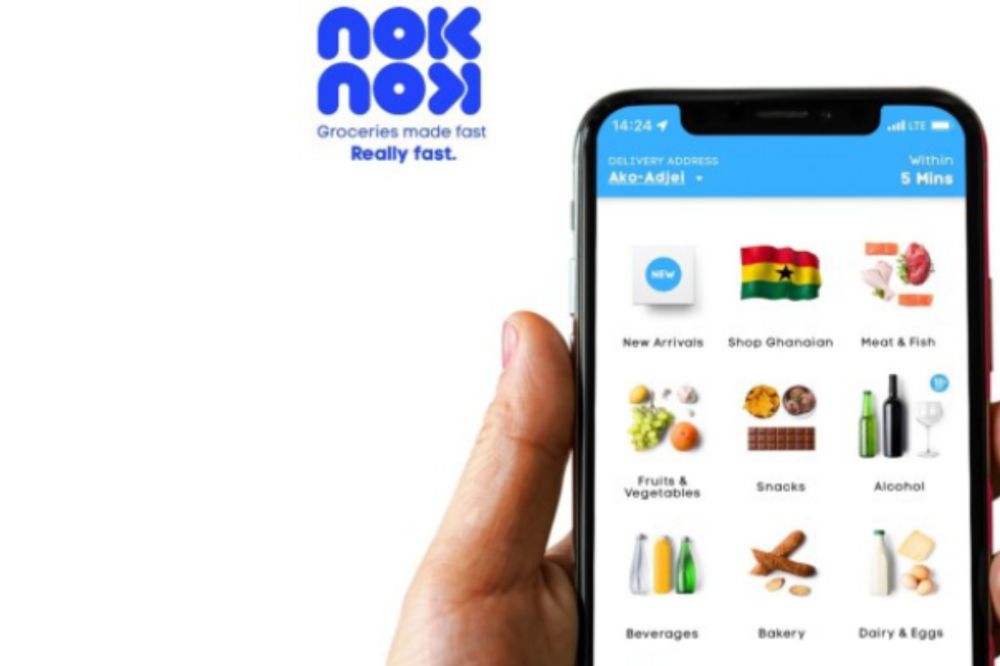
  • Noknok App: How to Use this App for Your Grocery Delivery Needs

    Noknok App: How to Use this App for Your Grocery Delivery Needs

    Grocery shopping can be time consuming and expensive. Especially if you’re going to the store every day. Luckily, with Noknok App, you can save time and money by having your groceries delivered to you as soon as possible.

    With this app, you can skip the lines at the grocery store and save on gas by ordering everything you need in one place.

    Here’s how to use Noknok App for your grocery delivery needs.

    What is the Noknok App?

    The Noknok App is a smartphone application that allows you to order grocery items and have them delivered directly to your door. The company started its operation in Lebanon and has now expanded their services to Ghana.

    Items you can order on the Noknok app

    The platform operates an inventory that highlights products’ availability in real-time for customers to order from the nearest store for processing and delivery.

    It also allows customers to track their order and delivery status from the word go. The category of items includes;

    • Ready-to-eat foods
    • Fruits and vegetables
    • Beverages
    • Personal cares
    • Alcohol
    • Snacks
    • Household items, and more.

    Why should I try it?

    The Noknok app is a great way to make grocery shopping easier and more convenient.

    In addition, you can save money by using Noknok because the company provides discounted products from time-to-time.

    How to use the Noknok app for your Grocery delivery needs

    Noknok is an app that will change the way you shop. This innovative system offers same-day or next-day delivery of groceries right to your doorstep. To use the app,

    1. Download the Noknok app on Android or iPhone
    2. Tap on sign up to create an account.
    3. Enter your username, email, phone number & password to complete signup registration.
    4. Validate your account with the code you will receive or click on link in your email to complete verification.
    5. Now,visit the categories on the app and look through add the groceries you want in cart.
    6. All groceries has their prices attached so you can have an easy shopping.
    7. After you are done, tap on cart section to make your payment using your credit card or MoMo payment method.
    8. Choose delivery method, input any special note and then click on make payment to complete your online shopping.

    Areas Of Operation

    The company currently works within Accra and are working hard to extend their services across the country.

    Below are the places they currently works within:

    • Cantonments
    • North Ridge
    • Osu
    • Labone
    • Roman Ridge
    • Dzorwulu
    • Adabraka
    • Airport Residential Area
    • Airport City
    • West Ridge
    • Asylum Down
    • Abelemkpe

    Noknok working hours

    The platform operates seven days a week from 8am – 11pm.

    Contact details

    Ghana

    [email protected]
    +233 597 400001

    6 Ako Adjei, Osu, Accra. Ghana

    Lebanon

    [email protected]
    +961 1 426 706

    1st Floor, Tueny Building, Mohamad Beydoun Street, Achrafieh, Lebanon.

    Conclusion

    If you’re feeling overwhelmed with the idea of going out to buy groceries, then give Noknok a try.

  • How to Change background & Turn off Auto Capitalisation in Google Docs

    How to Change background & Turn off Auto Capitalisation in Google Docs

    In this tutorial, we are going to learn how to change the background in Google Docs. We are also going to learn how to turn off Auto Capitalisation in Google Docs, which will let you stop your text from automatically capitalising every time you press enter or return on your keyboard. These are great tips that can help you save time with your writing and formatting.

    What is Google docs

    Google docs is a word processing software that allows you to work on documents at the same time with others. With Google docs, you can share, edit and save documents online, access them from any device and get stuff done anytime-anywhere.

    One of the many features that come with google docs is the ability to customize your document by adding a background image and turning off auto capitalisation.

    Is Google docs important?

    Google docs is an easy way to type up a document and share it with others. It’s also helpful for collaborating on projects. So, Google docs is an important tool when it comes to word document.

    How to change background in Google docs

    You might be working with Google docs and it has gotten to a point where you need to change the background of the Google docs sheet you are using, follow the steps below.

    1. Go into your document, or open a new one by going to docs.
    2. Click File, located in the top toolbar.
    3. Select Page setup.
    4. Click the drop-down under Page color, located in the bottom left corner of the pop-up.
    5. Now select your desired color from the list of presets and your google docs background color will be changed.
    6. Click OK and if you want to make the color your default color too, you can tick set as default.
    7. You can also choose custom under the page color to design a color of your own.

    How to turn off auto capitalization in Google docs

    Auto capitalization can be sometimes annoying when typing and that is why you readily want to turn it off in order to have a free typing without any interference. You can turn of your google docs auto capitalisation on android and iOs as well as on the web.

    Turn off google docs auto capitalization on android

    1. Open the Settings app and scroll down and select System.
    2. Tap on Languages & input, and then select On-screen keyboard.
    3. Choose the keyboard that you use on your Android phone and tap on Text correction, then scroll down and toggle off Auto-capitalization.
    4. Congrats. You can now use your phone keyboard without any auto capitalization worry.

    Turn off google docs auto capitalization on an iPhone

    To turn of Google docs auto capitalization on an iPhone,

    1. Head over to the Settings app on your iPhone or iPad.
    2. From there, tap General and go to keyboard.
    3. Under the All keyboards section, slide the toggle for Auto-Capitalization to the left or simply tap it to turn it off.

    Turn off google docs auto capitalization on the web

    To turn of Google docs auto capitalization on the web,

    1. Head to the Google Docs website and open any document that you can edit.
    2. In the toolbar at the top of the screen, click Tools, and then Preferences.
    3. Uncheck the box next to Automatically capitalize words, the first option.
    4. Click OK at the bottom of the menu.
    5. Now, your text won’t be auto capitalized anymore.

    Conclusion

    Google docs is a great way to start a document. However, you’ll want to customize it as much as possible for your purposes. The default formatting is fine if you’re going for a simple layout, but for anything more involved, you’ll need different colors and fonts. All the best in your docs edits.

  • How to Superscript, Subscript, Strikethrough and Indent in Google Docs

    How to Superscript, Subscript, Strikethrough and Indent in Google Docs

    While Google docs looks simple to use, you can still do a lot of things you may not know about. Here’s some steps on how to superscript, subscript, strikethrough and indent in Google docs. To get started, just follow these steps below.

    What is Superscript in Google Docs

    Superscripts are a way of showing how much higher one number is than another. In mathematics, superscripts are used to indicate the order of operations.

    For example, 32 means 33, or 9. You can also use them for exponents: x2 means xx*x or x squared. You can also use superscripts for other purposes.

    What is Subscript in Google Docs

    A subscript is a smaller letter that appears below the main letter. To create a subscript, you can use the symbols ^ or _. For example, when writing H20, you can type H2_0.

    What is Strikethrough in Google docs

    The strikethrough in Google docs lets users strike through parts of their written text by drawing a line through select ones. This action does not only make the text irrelevant but also draws readers attention. It makes your text standout from your whole sentence.

    What is Indentations in Google docs

    Indentation or indent is an empty space at the beginning of a line to signal the start of a new paragraph. In a layman’s understanding, it simply means the increase or decrease of space between the left and right margin of a paragraph.

    How to superscript in Google docs

    The steps below shows you how to superscript using keyboard.

    For Android

    1. In the Google Docs document, select the text character, number or symbol to which you want to apply superscript.
    2. Press Ctrl + period (Ctrl + .)

    For Mac/iOs users

    1. In the Google Docs document, select the text character, number or symbol to which you want to apply superscript.
    2. Press Command + period (⌘ + .)

    How to subscript in google docs

    The steps below shows you how to subscript using a keyboard.

    For Windows/Android users:

    1. In the Google Docs document, select the text character, number or symbol to which you want to apply superscript.
    2. Press Ctrl + comma (Ctrl + ,).

    For Mac/iOs users:

    1. In the Google Docs document, select the text character, number or symbol to which you want to apply superscript.
    2. Press Command + comma (⌘ + ,).

    How to strikethrough in Google Docs

    The steps below shows you how to superscript using a keyboard shortcut:

    • For Windows, once you have selected the text you want to cross out, press Alt+Shift+5
    • For Mac, press Command+Shift+X

    How to indent in Google docs with a keyboard

    The steps below shows you how to indent in Google docs using a keyboard.

    1. Fire up your Google Docs document and select the paragraph that you wish to indent
    2. Now, if you want to increase indent, tap on Ctrl + ] to increase indent
    3. If you want to decrease indent, tap on Ctrl + [ to decrease indent.
    4. Aside from the above 3 steps, if you’re looking for more precision while indenting paragraphs, you can go to Format > Align and Indent > Indentation options and select the option you want to use.
    5. This steps can be applied on both android and iOS.

    NB: There are several methods that can be used if you want to superscript, Subscript, strikethrough, and indent in Google docs but we highlited on the best and common method to use for the same results you desire.

    Conclusion

    There are several things you can do with google docs and superscript, Subscript, strikethrough, and indent is not an inception. Incase you want to practice any, you can use the steps above.

  • How to Know if Someone is Active on Snapchat

    How to Know if Someone is Active on Snapchat

    If you’re not active on Snapchat, you may be wondering how you can tell if someone else is actively using this mobile messaging app.

    This article will walk you through how to know if someone is active on Snapchat, no matter whether they’re someone you know personally or if they’re just one of the many Snapchat users out there in the world.

    Snapchat

    Snapchat is a mobile messaging application used to share photos, videos, text, and drawings. It’s free to download the app and free to send messages using it. It has become hugely popular in a very short space of time, especially with young people.

    How to know if someone is active on Snapchat

    Checking snap maps

    There are many ways you can know for sure whether or not someone is active on the app. One way is by checking their snap map, which displays the last time a user has snapped with a person and how far away they are from them. This method isn’t always accurate, but it can be effective in some situations.

    If the person has not switched to Ghost mode, then you should be able to see when they last used Snapchat and where they were when they were online. To access the map,

    1. Open the snapchat app and locate Maps at the bottom left corner.
    2. Press on it and tap on search to search for the persons name
    3. After search, a bitmoji will show app indicating the person. Click on that.
    4. Now, look at the bottom and beneath the persons name shows the persons last seen on Snapchat written in a grey like text.

    Checking snap chat status

    Checking somone chat can also be a way to detect when last they used the app and when last they were active. Snap chat status are mostly seen at the top of the users chat when you open your chat with him/her. You can also check by,

    1. Opening the app and go to the chats screen.
    2. Next, press the settings icon in the top-right corner.
    3. Then it will show you the last time your friends were active on Snapchat.
    4. They are likely still active on the app if the time is recent, if not, the last time they were active will show.

    Using snap score

    Increasing your snapscore depends on how actively you can use snapchat. So, snapscore can also be a method to determine a users activeness on the app. The higher the score, the more active the user. To check a person’s snapscore,

    1. Open the snapchat app and swipe down from the top of the screen.
    2. In the next pop-up, press the “Settings” icon in the top-right corner of the screen.
    3. Scroll down and press “My score.”
    4. It will show you the Snapchat score of the person you are looking for.
    5. If the score is high, the chances that the person is more active on Snapchat are also high.

    Checking their status update

    Checking someone status update can also tell you how long they have been on snapchat. At time too, the user can be on snap but will not update their status. For that, if you have made an update yourself, you can check from your views to see if the person has viewed your status and when the person viewed it. To check someone story posts,

    1. Open the app and go to the “Stories” screen.
    2. Look through the updated stories on your wall and check if the person has updated their status.
    3. You can also search the persons name directly to check the last time they made a post.
    4. If there is no post attached to the name, it means there has been no update from the person.

    However, you can go back to stories and locate my stories to check if the person has viewed your snap status update. To do that,

    1. Open snapchat and tap on stories.
    2. Locate my stories and press the settings icon in the top-right corner of the screen.
    3. Scroll down and press story views.
    4. It will show you a list of people who have viewed your story.
    5. If you see the person in your views, you can see when the person viewed to know when the person was active on snap.

    Why do you need to know if someone is active on snapchat?

    You may have come across someone’s snapchat profile but don’t know if they are active. You may have messaged someone but has got no repgot and don’t know if they are active.

    You may want to monitor how active your child is on Snapchat. This all and more could be reasons why you want to know how active someone is on Snapchat.

    Conclusion

    Checking someones activeness on snap shouldn’t be a hard work. With the methods above, you can now have your easy way to do so.

  • How to See Who Has Shared Your Post on Facebook

    How to See Who Has Shared Your Post on Facebook

    In the world of social media, your online reputation can make or break you in your business and personal life alike. This makes it important to know how to see who has shared your facebook post and how to get others to share your content.

    In this article we will talk about some tips that will give you more insight into what other people think of you, as well as help you to get others to share your content with their own friends and family on facebook.

    About facebook

    Facebook is the world’s most popular social network. What started as a way for college students to connect with each other has grown into an international phenomenon, with more than 1.6 billion monthly active users.

    Facebook post sharing

    Incase you didn’t know, you can actually see who has shared your post on Facebook. All you need to do is go into the Activity Log and search for your post. It will show up there with the people that have shared it. Lets break it down for you.

    How to see who has shared your post on facebook

    The steps below will guide you to see who has shared your post on Facebook.

    Step 1 – Login to your personal facebook account

    Open Facebook app or visit www.facebook.com. Enter your username and password and then click on login to be able to have access to your facebook page.

    Step 2 – Click on the ‘Friends’ button

    Now you are logged into your Facebook account. At the top right corner, locate the friends button and click on it.

    Step 3 – Click on ‘Activity Log’

    Click on Activity log in the next pop up menu to show you the activities you have undertaken with your Facebook account so far.

    Step 4 – Click on ‘Posts’

    Inside the Activity Log shows your post you’ve shared and want to see who have sharedliked or commented on it.

    Step 5 – Click on ‘View Sharers’

    Now, click on view sharers to see users who have viewed and shared your post. Its now time to show appreciation in order to motivate them to share more of your work. A thank you for sharing my post in their DM will be much worthy.

    Step 6 – Check to see if the amount of people sharing is what you expected

    Now, you may have a specific person you want to check out whether he/she has shared your post or not. Its time to do so by glancing through the sharers.

    Is it necessary for someone to share my facebook post?

    Sharing your post helps to keep it more active on news feed. Every seconds on Facebook, people make a post and the more there is a new post, the more yours drops so its important if people shares your post. It helps it to appear in most places making it more active.

    Conclusion

    Now that you know how to see who has shared your post, it’s time for you to get out there and start reaching people with your message. The sooner you share it, the more chances you’ll have of someone seeing it.