Category: Guides

  • How To Find and Change Your Hotspot Password

    How To Find and Change Your Hotspot Password

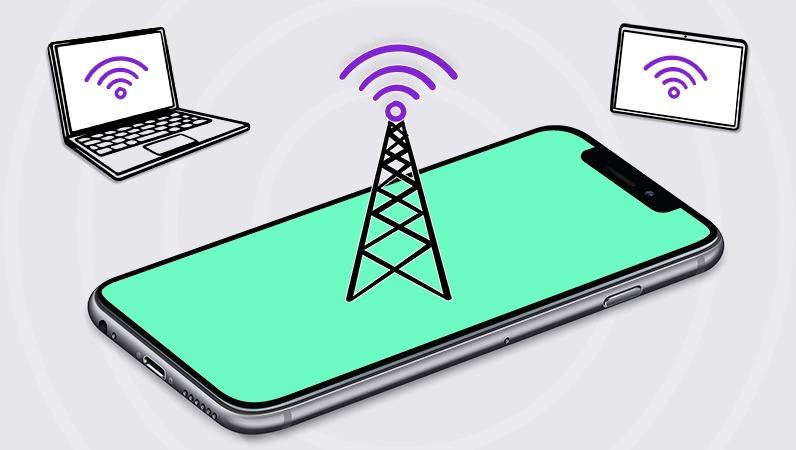
    Due to the high price of fibre broadbands and other Wi-Fi providers, the alternative most people sort to is their mobile hotspot. Mobile Hotspot allows you to use your device’s internet as the Wi-Fi for the other device (s) you connect to it.

    According to cybersecurity experts, it is advisable to change your passwords or update the passwords of your email, laptop, smartphone, ATM card, and other sensitive information on a regular basis, keeping in a mind a safe place to keep these passwords in case you forget them in the future. That is where password manager apps come in for you to save all your passwords in one place and access them whenever the need be.

    Likewise, your hotspot’s password needs to be changed on a regular basis to prevent other known and unknown devices from connecting to your Wi-Fi and then draining it completely. Setting a password on your hotspot will ensure that only devices authorized by you will be able to access your device’s internet connection.

    Now if you are wondering how you can change your hotspot password, this article is the answer to your worries. This is because, in this article, I am going to show you how to find and change your hotspot password for both Android and iPhone/iPad devices.

    How To Find and Change Your Hotspot Password

    In our everyday lives, there are two (2) types of devices that are classified based on the operating system (OS) they use. These are Android and iOS/iPadOS devices. The method of finding and changing the hotspot password on each type of device is different. Therefore, the method of finding and changing the hotspot password on each type of device is shown below.

    How To Find and Change Your Hotspot Password on Android Devices

    1. To get started, make sure your device has an active SIM card in it and that you have activated the internet settings
    2. Open the Settings app on your Android device
    3. Scroll through and select More under Wireless & networks
    4. Select Tethering & portable hotspot from the list of options
    5. Tap on Wi-Fi hotspot settings and user management
    6. Tap on Set up Wi-Fi hotspot
    7. A setup Wi-Fi hotspot screen will pop up
    8. Click on the Network name to change the name of your hotspot
    9. To find your password, tap to check the box next to Show password
    10. To change the password, tap on the password and type in your new password
    11. Once you are done, tap on SAVE, and your new password will be saved.

    How To Find and Change Your Hotspot Password on iPhone/iPad

    1. To get started, make sure your device has an active SIM card in it and that you have activated the internet settings
    2. Open the Settings app on your iPhone or iPad
    3. Tap on Personal Hotspot which is in-between Mobile Data and VPN
    4. You will find the password for your hotspot under Wi-Fi Password
    5. To change your password, tap on the Wi-Fi Password and then enter your new password
    6. Once you are done, tap on Done in the upper right corner of the screen to save your new password

    Conclusion

    Passwords are very sensitive as they are the key to the gate of your information. Therefore, when choosing a password, you must make sure it is something that is strong and cannot be easily guessed by anybody at all. Ideally, your password shouldn’t be your date of birth or name, it should be alphanumeric with at least one upper case and lower-case character, a special symbol, and a number.

    Most people do not see hotspots as sensitive but once someone gains access to your hotspot, there are several things he/she can do to your device or use your device for. To prevent this, all you must do is to follow the steps in this article and change the password of your hotspot to be on the safer side.

    How do I find my Vivo hotspot password?

    Go to Settings and then select Personal Hotspot. Next, tap on Password configuration to either view or change the password. You can also tap on Network ID to change the name of your hotspot.

    How do I find my Samsung hotspot password?

    Open the Settings app on your Samsung device and then select Connections. Next, select Mobile Hotspot and Tethering and then tap on Mobile Hotspot. The password of your hotspot will be displayed together with the name of your hotspot. If you wish to change it, tap on Configure and then enter your new password.

    How do I change my Redmi hotspot password?

    Open the Settings app on your Redmi phone, select Personal Hotspot. Next, select Set up Wi-Fi hotspot, select Security >> WPA2 PSK, and then enter your new password.

  • How To Find Your Lost Samsung Galaxy Watch

    How To Find Your Lost Samsung Galaxy Watch

    Wearables have gradually been taking over the watch industry in the world. Although some of the popular watch brands like Caveman Watches, Rolex, Patek Philippe, Cartier, Casio are still dominant in the watch industry, some of the other brands have gone after companies started making smartwatches.

    Unlike normal watches, smartwatches have different features which make them ideal for people. For example, the main thing that normal watches do is to tell the time and sometimes the date, but smartwatches tell both the date and time, bloop pressure, Electrocardiogram (ECG), some can make calls and even take photos.

    Samsung Galaxy Watch is one of the leading smartwatch brands in the world. Since the company Samsung and the brand Galaxy had already made a name before the smartwatches were manufactured, people happily accepted them into the market and have been growing the number of its users from time to time.

    Apart from the Samsung Galaxy Watch doing all these amazing features stated in the previous paragraphs, one thing that cannot be taken away is the probability that you might misplace it at a point in time.

    As human beings, we all make mistakes sometimes and when you make such a mistake, you should be able to recover your smartwatch without much stress. Because of that, this article is going to explain to you how to find your lost Samsung Galaxy Watch.

    How To Find Your Lost Samsung Galaxy Watch

    Before we begin with the steps, you must make sure that all the requirements such as Remote connection are already set in place before you misplaced or lose your Galaxy Watch smartwatch. Also, your Galaxy Watch smartwatch needs to be connected to an internet source like Wi-Fi or mobile data connection. Once all the requirements are met, then you can proceed by following the steps below.

    1. Open the Galaxy Wearable app on your smartphone
    2. Tap on Find My Watch
    3. Select Find My Band or Find My Gear under fitness bands
    4. Depending on the model of your smartwatch, SmartThings Find will be opened
    5. A map of the last known location of the Galaxy Watch will be shown
    6. Once you are close to the area, tap Ring and the watch will start playing a sound and vibrate
    7. Other watches can also ring directly from your phone if it is connected to your phone using Bluetooth. In such cases, just tap START and your watch will begin to play a sound and vibrate.

    What Happens When You Lost Your Watch Outside Your Bluetooth Range?

    In situations where you lost your watch out of Bluetooth range, you will still be able to set some security options. But this can only happen when Remote Connection was enabled before you lost your Galaxy Watch.

    • Tap Set security and then choose from the following options:
    • Lock Watch: Once this is enabled, your smartwatch will be locked until the PIN is entered or it comes near your phone and connects to Bluetooth.
    • Reset Watch: This option is very useful if you have sensitive and confidential information on your smartwatch. Once you enable this option, all the data on your watch will be remotely deleted. This way, whoever has access to your smartwatch will not be able to find any of your information on it.

    Conclusion

    The introduction of smartwatches into the market has yielded several positive results. For example, before smartwatches were introduced if you wanted to check your blood pressure, you had to use the BP checking machine before you could check your blood pressure.

    That is not the case anymore, now with just a smartwatch on your wrist, you can check your blood pressure anywhere and at any time. Additionally, you no longer must go and see a doctor before you check your Electrocardiogram (ECG), the smartwatch can also perform this task for you.

    This and many more are some of the things smartwatches can do for you. But sometimes you might misplace your Galaxy Watch and when this happens, this article has shown you have you can find it in just a few and easy steps.

    Can I track my lost Samsung Galaxy smartwatch?

    Yes, you can use the Wearables app on your Samsung device to track and find your lost Samsung Galaxy smartwatch.

    How can I find my phone with my Samsung Galaxy Watch?

    Open the Find My Phone app on your Galaxy Watch and then tap Start to begin locating your phone. The ringtone of your phone will keep on playing until you find it and when you do, you can swipe down on the Dismiss icon.

  • How To Update Samsung TV and Samsung TV Apps

    How To Update Samsung TV and Samsung TV Apps

    Do you remember the first television you ever watched? Was it black and white or was it coloured? Television has over the years taken different forms, from a big heavy box with only a small screen to watch you TV shows in black and white, now some televisions have huge screens and it’s very slim as compared to the first TV sets that were made some years back.

    Among the new sets of televisions, one of the most used and popular class is smart TVs. In this particular class of televisions set i.e., smart TV, Samsung is one of the most popular and leading brands which has a very big number of users around the world.

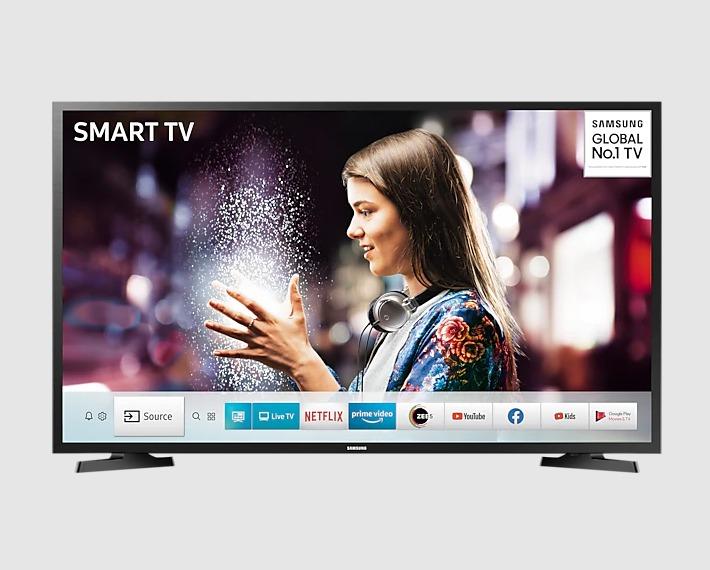
    Samsung smart TVs are television sets that can connect to the internet and be used for all other purposes that some mobile phones perform. Some of the features include Netflix, internet connection, YouTube, Amazon Prime, Spotify, and some other apps that can be found on the Smart Hub store on the Samsung smart television set.

    The apps on the Samsung television set, just like all other apps sometimes need to be updated to gain access to some of the new features introduced by the developer of the app. Although this is a good thing, most people sometimes find it difficult, and this article is going to show you how to update Samsung TV and Samsung apps.

    How To Update Samsung TV Apps

    By default, most Samsung smart televisions come with the automatic update feature. But sometimes due to one or two issues, your Samsung TV may not update the apps on it automatically. In instances like that, then your only option is to manually update the apps on your Samsung TV.

    How To Update Samsung TV Apps on Latest Models

    1. Before you begin, make sure that your Samsung smart TV is connected to the internet
    2. Press the Smart Hub or Home button on your remote (depending on the model of your TV)
    3. Locate the menu and then select Apps
    4. Choose My Apps from the drop-down menu and then select Options
    5. Keep the cursor on Auto Update and then press enter to either enable or disable this feature.

    How To Update Samsung TV Apps on Older Models

    1. Before you begin, make sure that your Samsung smart TV is connected to the internet
    2. Press the Smart Hub button on your remote
    3. Choose Featured from the available options (apps that can be updated are indicated by a small white arrow in a blue circle
    4. Locate the app you want to update and then press and hold the Enter button until a sub menu appears
    5. Select Update apps
    6. Click Select All
    7. Finally, select Update

    How To Update Samsung TV

    Samsung TV is like your mobile devices, which not only do you update the apps on your phone, but you also update the phone’s operating system as well. Therefore, not only do you update the apps on your Samsung TV, but you update your TV as well. There are two (2) main methods you can use to update your Samsung TV, either via the internet or USB.

    How To Update Samsung TV Via The Internet

    1. Go to the settings menu on your TV
    2. Select Support and then choose Software Update
    3. Finally, check if an update is available and then select Update Now
    4. There is an auto-update feature in the Software Update menu you can enable it for the TV to automatically install new software updates whenever they become available.

    How To Update Samsung TV Via USB

    1. Visit the official Samsung website and navigate to the Support page
    2. Enter your TV’s model number into the search box
    3. Choose Manuals and then download the file to your PC
    4. Choose your TV model from the list
    5. Select Downloads for the latest software update for your TV. Download this to your PC as well
    6. Copy the software onto an empty USB drive
    7. Plug in the USB drive into your Samsung TV
    8. From the TV menu select Settings and Support
    9. Select Software Update
    10. Next, select Update Now
    11. Point the TV at the USB drive and let the update begin. (Point here means allow or direct)
    12. Allow the update to finish completely before unplugging the USB drive.

    Conclusion

    Updating a Samsung smart TV can be done in two main methods and this article has shown how you can go about each of these two methods. The update via the internet is easier than the update via USB which is a bit complicated and long. Either way, you can try each of them and see which of them works best for you.

    Samsung smart TVs have their name because of the smart features they come with. There are different models and sizes of Samsung smart TVs on the market. Therefore, when you are going to the market to buy a Samsung TV make sure you do your research first and then buy from only authorized and accredited Samsung shops in your area.

    Can you update an old Smart TV?

    Yes. You can update your Smart TV if there’s a new software update for the TV. Obviously, if there are no available updates, you cannot update your Smart TV.

    How do I download apps on Samsung Smart TV?

    To download apps on your Samsung Smart TV, open the Smart Hub and then click on Apps to open the apps menu. Here, there are several apps available, click on the ones you want to install and wait for them to finish installing on your TV.

    How do I search for apps on older Samsung TVs?

    Open the Smart Hub on your TV, click on Apps, and then in the search bar above or below depending on the model, type in the app you are looking for and press ENTER. If such an app exists, you will be able to download it to your smart TV.

    What is Tizen in Samsung TV?

    Tizen is an open-source, Linux-based operating system that was developed partly to provide a kind of unified operating system across multiple tech devices, such as smartphones, wearables, TV sets, etc. Tizen in Samsung TV is promising a redesigned interface with better access to content, as well as easier sharing between TV sets and mobile phones.

  • Top Digital Marketing Tools for Your Business in 2022

    Top Digital Marketing Tools for Your Business in 2022

    The growth of every business depends on several factors and one of them is marketing. Over the years, the forms of marketing for businesses have changed from the form where people had to walk to customers and market their products to them, to now sitting at home or anywhere for that matter and targeting their audience and prospective clients through digital marketing.

    Every year, digital marketing operates differently from the previous year. Therefore, as a digital marketer, you must stay on top of your game by learning the new trends and most importantly knowing the right tools to use for your business.

    For example, in 2020, most people spent time on their devices making it easier to target them but in 2021, things began to return to normal and the time spent on social media decreased. Without the right tools, it will be difficult for a digital marketer to spot this trend and use it to make their right social media strategy or plan.

    To prevent you from making this same mistake in 2022, this article is going to recommend to you some of the top digital marketing tools for your business in 2022. Each of these tools performs a specific function that is relevant to the growth of your business.

    Top Digital Marketing Tools for Your Business in 2022

    Google Analytics

    The only way you can track the performance of your Key Performance Indicators (KPIs) is by analyzing the performance of your campaigns and promos. You can never become a good digital marketer without using Google Analytics for your site.

    Google Analytics provides a vast insight to help you grow your business. These insights give you a hint of how your campaigns are performing, how users engage with your website, and what you can do to improve the performance of your site for your users.

    2021 proved to be a very unpredictable year for digital marketing as things did not turn out as expected. But with Google Analytics’ predictive analysis, you can gain some insights into the future. The predictive analysis is able to tell how well your campaign will perform based on all factors under consideration. Using Google Analytics in 2022 will help you with your digital marketing strategies and in the long run, help you grow your business.

    HubSpot CRM

    Customer relationship is one of the key things businesses need to factor in when running a digital marketing campaign. As the saying goes, a happy customer is a repeat customer, there is the need for businesses to make sure they treat their customers very well.

    To enable you to do this in 2022, HubSpot Customer Relationship Management (CRM) is the best tool for you. HubSpot allows you to execute your digital marketing campaign to yield maximum results.

    This tool helps you to find leads, engage and nurture these leads for them to give you a good result. HubSpot is one of the names on the lips of all the biggest digital marketers and if you want your business to grow, you need to have this tool in 2022.

    Buffer

    Most digital marketing campaigns are run through social media platforms like Facebook, Instagram, and Twitter. Buffer is a tool that will help you effectively manage your business’s social media accounts from a single portal.

    You can use Buffer to schedule social media posts in advance, check the analytics of your social media accounts, and manage different social media accounts from a single site without logging in to each of the accounts. This means, you can manage your Facebook, Twitter, and Instagram accounts without opening any of these apps.

    The User Experience (UX) on Buffer provides first-time users with a smooth experience because of its simplistic nature. If you work with a team of other marketers, you can also add each of them to the Buffer portal to also manage the social media pages with ease.

    Canva

    The work of a digital marketer is not complete without designing amazing graphics which he/she will use to sell his/her products online. With that in mind, Canva is your go-to software for designing beautiful social media graphics or infographics which help to engage your audience and prospective customers.

    Canva is a graphic design tool that is used to create social media graphics, presentations, posters, documents, logos, and other visual content. This tool contains several templates made by a team of graphic designers with several years of experience to help you create that great graphic for your digital marketing campaign.

    Canva is free to use and comes also with other paid packages like the Canva Pro and Canva for Enterprises. One other feature is that all your designs are automatically saved so that you can always come back later and finish your design.

    MailChimp

    Email marketing is one of the most effective digital marketing techniques which when done properly, could bring you a good Return on Investment (ROI). With email marketing, you can get your message directly to your buyers in their respective emails.

    MailChimp is one of the best email marketing tools to use for business in 2022. Using MailChimp, you can send out branded and professional emails to help drive traffic and sales for your business. For businesses that make newsletters to their customers, MailChimp is the right tool to use for that if you intend on driving more sales.

    SEMRush

    With several businesses like yours online competing for customers, the only way you can try and beat the competition is through Search Engine Optimization (SEO). SEMRush is an SEO tool that comes with several tools to help you ace your digital marketing campaign in 2022.

    Some of the features in SEMRush include a tool to help you conduct keyword research, find potential backlink opportunities, SEO tracking, and conduct an SEO audit of your site to see your weak points. Also featured in the latest version are enhanced advertising, content marketing, and social media management tools.

    Conclusion

    Several other tools could not be mentioned in this article since the number of tools you can use for your digital marketing campaign is many. Nevertheless, the tools mentioned in this article once you have them should be sufficient for you to see positive results in your business.

    To make sure you can use these tools well, you can take a week or two to familiarize yourself with these tools in order for you not to run into any trouble when using these tools. But if you come across any challenge you can always send it to the support team, and they will be on standby to assist you.

    What is the next big thing in digital marketing?

    Digital marketing is a gradually growing sector and most of the spending are on search, display, video, and email marketing. Therefore, any of these areas can be expected to be the next big thing in digital marketing.

    What is trending in digital marketing?

    There always trends in digital marketing as the industry is always growing. Therefore, there is not one specific trend in digital marketing. What might have been the trend yesterday may not be the trend today, and that is why you need to tools stated in this article.

    Is digital marketing in demand in 2022?

    Yes. Companies are always on the lookout for talented digital marketers to increase their sales and revenue.

  • The Best Android App Dialers You Can Use Right Now

    The Best Android App Dialers You Can Use Right Now

    One of the main reasons why we all use mobile phones is the ability to make phone calls. Other than that, most of the other things we do on our phones could have been done on other equally able devices like laptops and the other types of computers which can be used to access the internet.

    Android is undoubted, the most used smartphone Operating System (OS) in the world. According to Business of Apps, there are more than 2.5 billion active users of Android in over 190 countries all over the world.

    In a world of about 7.753 billion people, Android has over 32.245 percent of the world’s population. This means that for every people you pick at random in the world, approximately 32 of them are using Android and that is massive. This number could be linked to the easy nature of the OS and the freedom it gives to its users over other Operating Systems like iOS.

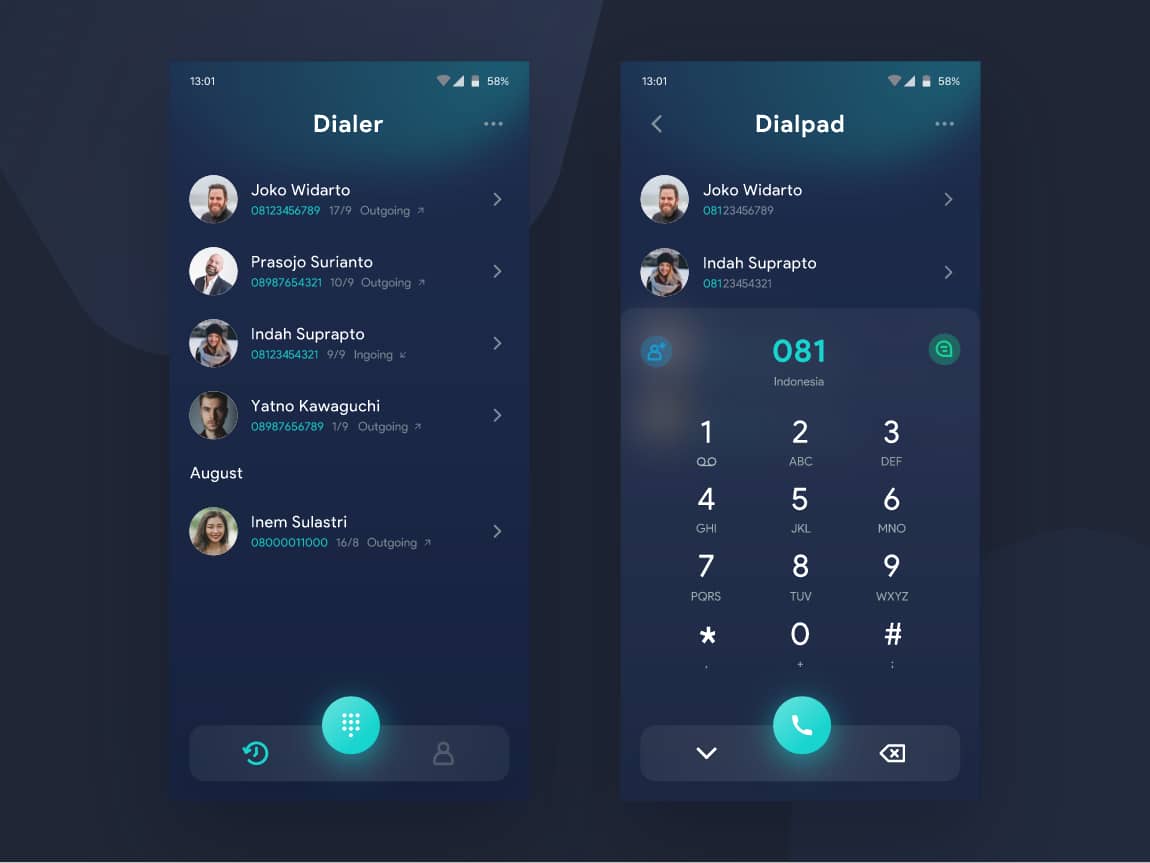
    By default, every new Android device comes with a phone dialer app already installed on them with some of them being system apps, i.e., they cannot be deleted. But not all these app dialers are able to meet the needs and standards of certain users.

    In such situations, there is the need to download and install a personal phone dialer that meets your needs and standards. And in this guide, I am going to show you some of the best Android app dialers you can use right now on your device.

    The Best Android App Dialers You Can Use Right Now

    Simple Dialer

    Just as the name suggests, Simple Dialer is a simple Android dialer app you can use on your device right now. One of the outstanding features of this app is the unique User Interface (UI) and its tabbed structure.

    Some of the other main features include call blocking and group texting, nice contact management, merging and syncing, duplicate finding, online and offline contact backup, smart T9 dialer, and smart clean-up options.

    Phone and Contacts by Google

    Phone and Contacts are different apps that are available on the Google Play Store for Android users. The Phone app is basically Google’s base dialer app which has features like caller ID, spam warnings, and the ability to search for nearby places to get the phone number of the specified location.

    Contacts on the other hand is a contact management app which although is basic, has some distinct and effective features that stand out from the rest. Since it was developed by Google, you can save and back up your contacts to your Google account and later restore them whenever you use a new device. You can also merge duplicate contacts, separate work, and personal contacts, and some other cool features you can find in it.

    Truecaller

    Truecaller is one of the most popular Android app dialers in the world and it also doubles as a messaging app. Most people use Truecaller due to its ability to find out the name of your caller and the country of the call and the fact that is free is also another contributing reason.

    But aside from that, Truecaller also has an SMS spam filter, dual-SIM support, call blocking, and many other features. The UI is simple and can be used by both tech geeks and non-tech geeks as well. Although it is free, there’s also a yearly package of $17.99 which gives you access to the premium features that are not available on the free package.

     Eyecon: Caller ID, Calls, Phone Book & Contacts

    Do you love to add photos to your contacts? If yes, then Eyecon is the right fit for you. As one of the most intuitive Android app dialers in the world, Eyecon allows you to sync your dialer to Facebook so that photos are automatically added to contacts.

    Eyecon also organizes the most dialed contacts and place communication buttons in front of the most often contact numbers using the intelligence of the app. Not only can you sync your dialer to Facebook, but you can also sync it to most the other social media platforms like WhatsApp, Viber, etc. making it easy to identify unknown numbers.

    Contacts+

    Contacts+ is one of the great Android app dialers you can use on your device for free. This is also a two-in-one dialer and contacts app which has some pretty cool features in it. Some of these amazing features include contact management, merging, and finding duplicate contacts.

    Also featured in it is the ability to customize how your contact list and call logs are displayed in a user-friendly way. You can also connect with your friends and others on the Contacts+ app. It protects your stored contacts via encryption and beyond making sure your contacts are safe.

    Conclusion

    Apart from the apps mentioned in the article, you can also try some other apps like Drupe, Metro Phone Dialer, OS9 Phone Dialer, True Phone Dialer, Simple Contacts Pro, etc. All these apps can be found on the Google Play Store, and they are all free.

    Over the years, Android devices have been known to be one of the most customizable devices in the world. One way you can customize your device is by changing the dialer on it and this article has shown some of the best Android app dialers you can use for your device.

    Is there an app that redials for you?

    Yes. There are several Android apps that can be used for auto redials. Popular among these is the AutoRedia app which was developed by theCodingOwl.

    How do I set auto redial on Android?

    Open the Settings app on your device, go to Call Settings and then look for Auto Redial. Finally, tap on the Enable option to save your changes.

    How do I automatically redial a number?

    Upon successful completion of setting the redial on your phone, all the calls that are not able to go through will be redialled automatically without you having to do anything about it. On some devices, the question will be asked for you to either allow or decline the command.

  • How to Access UPSA Virtual Online Learning Platform

    How to Access UPSA Virtual Online Learning Platform

    The University of Professional Studies, Accra (UPSA) which was formerly known as the Institute of Professional Studies (IPS) is one of the biggest universities in Ghana. During the COVID-19 pandemic which led to the closure of schools and other institutions, the University of Professional Studies, Accra (UPSA) launched its virtual online learning platform.

    Since all schools were shut down, UPSA which is a university had to launch an online learning platform for its students (i.e., undergraduates and postgraduates). This platform came as a good intervention because it enabled UPSA to continue its academic semester from home without any interruption from the COVID-19 pandemic.

    Even after the president announced the lifting of the ban on the closure of schools, the University of Professional Studies, Accra (UPSA) have been using the virtual online learning platform to help reduce the number of students who attend lectures, i.e., whiles others are in school going for face-to-face lectures, the rest are at home doing virtual studies.

    Because the University of Professional Studies, Accra (UPSA) is known for using its virtual online learning platform mostly, there’s been the need to learn how to go about accessing it. Therefore, this article is going to show you how to access the UPSA virtual online learning platform.

    How To Access UPSA Virtual Online Learning Platform

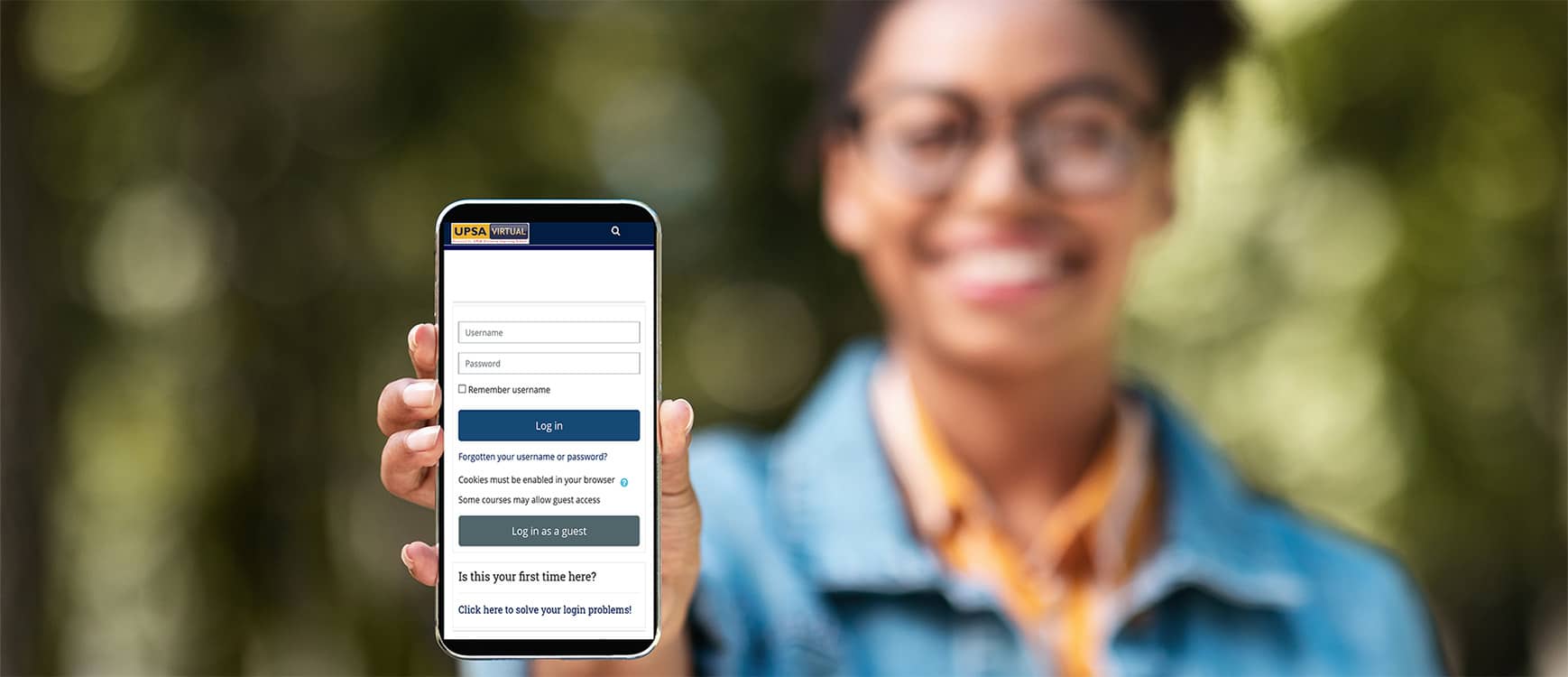
    1. Open a browser and enter join.upsavirtual.site
    2. Enter your student Index Number as your Username and Google1 as password
    3. Once you log in, you are required to change your password
    4. Enter a new password (either than Google 1) to proceed
    5. Click on courses from the drop-down list under the Navigation button on the left side of the screen
    6. Click on Undergraduate Programmes or otherwiseand select the category of your program (i.e., Bachelor or Diploma) if applicable
    7. Select your current level (100, 200, 300, or 400) if applicable
    8. Click on any of the course codes to display the content under the course. E.g., ACTU 204 to open Introduction to Statistical Computing
    9. Next, enter the Enrolment Key already provided by the respective course instructor or lecturer to gain access to the contents and resources
    10. Finally, you can download or view the resources provided in the course

    How To Reset Your UPSA Virtual Online Learning Platform Password

    Since we are all human beings, there is a chance that you might forget your password at some point in time. When that happens, then there is the need for you to reset your password and in order to do that, follow the steps below.

    1. Open a browser and type join.upsavirtual.site
    2. Click on Forgotten username or password
    3. Enter your student index number or student email address in the spaces provided for username and email address respectively
    4. Check your student email for a password reset link from the UPSA E-learning platform. This email has the subject UPSA E-Learning Platform: Password reset request
    5. Read the email and follow the instructions to reset your password

    Important Things to Note About the UPSA Online Virtual Learning Platform

    Before you access the UPSA online virtual learning platform, there are some important things you need to note before you get started.

    • Make sure you have successfully registered for all your courses for the semester. Only courses that have been successfully registered will be shown in the course lists
    • Make sure to activate your UPSAmail before you use the virtual learning platform. This is because all relevant information and links will be sent to your UPSAmail
    • While logging into your account, if you see Invalid login, it means either your student index number or password is incorrect. If you enter your username and password and you still get the error message, then you must change your password.

    Conclusion

    Looking at how new variants of the COVID-19 virus are being reported on a regular basis, it is evident that COVID has come to stay and so we must be ready for whatever it brings; and one of the things that it has brought is the full utilization of virtual learning platforms.

    Thus, there is a need for Ghanaians and people living in the country to learn how to make the most out of virtual learning platforms. UPSA students and prospective UPSA students need to learn how to access the virtual online learning platform and this article has done due diligence.

    In conclusion, aside from the course contents on the virtual learning platform, students can also access the University Library virtually by clicking on the Joshua Alabi Library Online button when they log on to the virtual online learning platform.

  • How to Easily Backup Your Gmail Account and Emails

    How to Easily Backup Your Gmail Account and Emails

     Backing up your Gmail account is one of the most important things you could do to your Gmail account. With hackers constantly on the lookout for weak accounts to penetrate and use for their malicious acts, it is very important to back up your Gmail account.

    This is even more necessary when you use your Gmail account for business and other confidential purposes. It is possible to lose your messages and the other information on your Gmail account at some point in time but if you have backed up your account and emails, all your messages and information will be safely stored on the cloud for you to access.

    Gmail is one of the most used email platforms in the world. As a subsidiary of Google, and a requirement for services like YouTube, it is no wonder a surprise that Gmail is patronized by many people all over the world.

    In this guide, I am going to show you how to easily backup your Gmail account and emails. Not only is Gmail used for sending and receiving emails, but it is also useful when creating accounts on many services like Google AdSense, YouTube, Google Analytics, and a list of other services patronized by mostly digital content curators and creators.

    How To Easily Backup Your Gmail Account and Emails

    There are several ways you can backup your Gmail account and emails. Some of the methods are free and the others are not free. You can begin with the free packages and then proceed to the paid ones if you prefer them to the free ones.

    How To Easily Backup Your Gmail Account and Emails by Downloading Your Gmail Messages

    By default, Google has a service that allows users to back up their Gmail account by exporting and downloading the data to your computer. First, your messages will be compressed into a zip file which could easily be downloaded.

    1. Open a browser on your computer and log into your account
    2. Head over to the Data and Personalization area
    3. Scroll down to Download or delete your data
    4. Click on Download your data
    5. You will be automatically directed to the Google Takeout page
    6. Check the box next to Gmail and any other apps you want to back up under Select data to include
    7. For services with the Multiple formats button, click on it to choose the format in which your data will be downloaded
    8. Next, click on the Next step
    9. Click the arrow below Delivery method to see the options available to save your data (an email with the download link, add it to your Google Drive, Dropbox, OneDrive, or Box)
    10. Choose whether you want to export it just once or every two (2) months
    11. Select the type of file and the maximum file size. If the size exceeds your maximum file size, the data will be divided into two (2)
    12. Click on Create export after you have done your selections

    How To Easily Backup Your Gmail Account and Emails by Syncing Your Gmail to a Local Email Client

    Whether you are using a google mail client or otherwise, you can synchronize your Gmail account with almost any other email client. This could be Outlook, Thunderbird, Mailbird, etc. This way, all your emails will be downloaded to this email client together with your main Gmail account.

    With this method, even if you don’t use the other email client frequently your Gmail messages are still secured. In case something happens to your account, you should be able to access a version of your account.

    How To Easily Backup Your Gmail Account and Emails Using a Third-Party Gmail Archiver

    After trying all the other methods and you are still not convinced, you can use a third-party Gmail archiver. Some of these are free (Gmvault) and the others are paid (Backupify, Mail Archiver X) and they allow you to backup all your current Gmail messages.

    These services are developed by third-party apps and most of them are automatic. This means that when you lose your data, they have the recent version in a vault for you to access. Before choosing any of the third-party software, make sure to read about them and read reviews from the people who have used the software before.

    Conclusion

    Getting money in this modern era is very difficult and so paying for a service to automatically back up your Gmail account although useful can be a little difficult. Therefore, if you wish to use the free methods, then you must regularly back up your Gmail account, ideally once a month.

    It is not common for someone to lose their Gmail account and emails but still backing up your data is a good and safe move to make. To prevent the occurrence of losing your Gmail account, you must make sure that you regularly change your Gmail password and perform regular security checks on your account to be on the safer side.

    Can I download all my emails from Gmail?

    Yes, you can export and download all your data from Gmail, including your emails. Unless the email has been deleted.

    How do I backup and restore emails in Gmail?

    There are several ways you can go about this. In this article, some of the most effective methods have been listed. Once you go through them you should be able to backup and restore your emails in Gmail.

    Can my supervisor see my emails?

    Emails provided by companies and institutions are not generally private. Therefore, your supervisor can see all the emails you send and receive through them.

  • How to Fix: Wi-Fi Doesn’t Have a Valid IP Configuration

    How to Fix: Wi-Fi Doesn’t Have a Valid IP Configuration

    Do you always run into the “W-Fi doesn’t have a valid IP configuration” error when diagnosing an inactive internet connection on your computer? If you do, then this article is going to help you fix this issue on your computer.

    Wi-Fi, known in education and other fields as the abbreviation for Wireless Fidelity is a system that is used to connect computers and other electronic equipment to the internet without using wires. In Ghana, Wi-Fi came to replace modems that were used to access the internet for many years.

    Even though Wi-Fi has its advantage over the other means of connecting to the internet like modems and ethernet cables, sometimes the W-Fi doesn’t have a valid IP configuration error that appears when you try to troubleshoot your internet connections.

    Unfortunately, troubleshooting your internet connection will only tell you the error and where it is coming from but there is no solution added to it. Therefore, to fix this problem you need to find out how to solve this issue on your own. That is why this article is going to show you how to fix it: W-Fi doesn’t have a valid IP configuration.

    What is an Invalid IP Configuration?

    By default, when you connect your device to a Wi-Fi network, your router assigns an Internet Protocol (IP) to your computer to enable it to get online. But if an error occurs, the computer and the router cannot communicate therefore, you cannot connect your computer to the internet.

    In most cases, the computer tries to use a different IP from the one the router assigns to it, and this prevents you from accessing the internet. In the end, you get the error message that your Wi-Fi doesn’t have a valid IP configuration.

    Another factor that might cause this error to occur is when there is an issue with some of the drivers on the computer. If there are some drivers that need to be updated but are not, they may contribute to your Wi-Fi running into this error.

    How To Fix: Wi-Fi Doesn’t Have a Valid IP Configuration

    The W-Fi doesn’t have a valid IP configuration error that could be caused by several factors and as a result, there is no one way of going about solving this problem. Instead, each error has its own way of solving it and in this article, we are going to recommend to you some of the most used and effective methods you can fix this error on your computer.

    How to Fix: Wi-Fi Doesn’t Have a Valid IP Configuration by Restarting Your Router

    Sometimes the issue is just about the router. To solve this issue, all you need to do is to restart your router and your problem will be solved in just a few minutes.

    1. On your router, locate the power button
    2. Depending on the type of router, press or press and hold the power button to turn it off
    3. Wait for a few minutes (5 minutes recommended) for the router to properly shut down
    4. Once the time has elapsed, press, or press and hold the power button to turn on the router
    5. Re-connect your computer to the Wi-Fi to see if the problem has been resolved.

    How to Fix: Wi-Fi Doesn’t Have a Valid IP Configuration by Restarting Your Computer With a Clean Boot

    1. Press Windows key + R on your keyboard
    2. Type in msconfig and hit the ENTER key
    3. Switch to the Services tab and check the box next to Hide all Microsoft services
    4. Click the Disable all button to disable every third-party service temporarily on your computer
    5. Click the Apply button and restart your computer
    6. Once your device has restarted, try connecting your computer to the Wi-Fi to see if the problem has been solved. Otherwise, try the next method.

    How to Fix: Wi-Fi Doesn’t Have a Valid IP Configuration by Resetting Your IP Address and Network Protocols (TCP/IP)

    1. Press Windows key + R on your keyboard
    2. Type in cmd and hit the ENTER key
    3. Type in the following commands and hit the ENTER key after each line to execute them: ipconfig/release
    4. ipconfig/all
    5. ipconfig/renew
    6. Stay in the Command Prompt you previously opened. Type in the follow commands and execute them in order:
    7. netsch int ip set dns
    8. netsch winsock reset
    9. Exit the Command Prompt once you are done executing the commands and restart your computer afterward.

    How to Fix: Wi-Fi Doesn’t Have a Valid IP Configuration by Updating Your Wireless Driver

    1. Press the Windows key + X
    2. Select Drivers Manager
    3. Expand Network adapters and locate your wireless driver listed
    4. Right-click the driver and select Update driver
    5. Select Search automatically for updated driver software
    6. If an update is found, install it and restart your device once the installation is complete

    How to Fix: Wi-Fi Doesn’t Have a Valid IP Configuration by Resetting Your Network Settings

    1. Go to Settings on your computer
    2. Choose Network & Internet and then Status
    3. Click Network reset

    NOTE: This will remove all your network adapters and reset all your settings back to default.

    If you are cool with that, click Reset now and then restart your PC.

    Conclusion

    Wi-Fi is very important for connecting your devices to the internet but at some point, in time, they may run into errors. One of the main errors you usually run into is the “W-Fi doesn’t have a valid IP configuration” error.

    This issue is usually caused by several factors and because of that, there are several ways you can solve this error. This article has given you some of the most used and effective ways you can go about it with a step-by-step approach for each of them. Read through, follow the steps, and you will be able to fix this error.

    What is the IP address on Wi-Fi?

    It is a unique address that identifies a device on the internet or a local network.

    Is your IP address your Wi-Fi or device?

    The IP is a unique address assigned to the device that has connected to the internet and not the Wi-Fi.

    Can two devices have the same IP address?

    No two devices can have the same IP address this is because when this happens, it confuses the network.

  • How to Fix TeamViewer “Connection Failed No Route” Problem

    How to Fix TeamViewer “Connection Failed No Route” Problem

    TeamViewer is an all-in-one solution for remote support, remote access, and online meetings which allows you to assist customers remotely, work with your colleagues from a distance and also stay connected with your own devices or assist friends and family members.

    Simply put, TeamViewer is a remote assistance software that helps users to access and control other computers remotely via the internet. One thing many people have learned from the new normal is how to work remotely without going to the office. In the western part of the world, this is not new but in our side of the world, it was not something we were used to before the pandemic.

    Unlike the office where IT technicians could be called to come and assist workers and customers with issues on their computers, IT technicians cannot be called to come and assist their co-workers or customers when they face an issue on the computers in virtual remote working.

    Instead, TeamViewer can be used by the IT technician to help solve the problems of either their co-workers or customers from wherever they are in the world via the internet. But since TeamViewer is software, sometimes it runs into errors and one of such errors is the “TeamViewer connection failed no route” error.

    Practically, the cause of this error varies from one user to the other, that is, there is no one reason for the occurrence of this error, but this article is going to show you some different methods you can use to fix this TeamViewer connection failed no route” error.

    How To Fix TeamViewer “Connection Failed No Route” Problem

    There are several methods you can go about fixing the TeamViewer “connection failed no route” problem but this guide is going to show you four (4) of the most effective methods you can go about it.

    Method 1: Restart the network

    In certain situations, the problem might be that either you or your partner did not connect to the router. Therefore, this problem is likely coming from the fact that there is an issue with the router and the network connection of the two (2) computers.

    As a measure to solve this problem, both you and your partner (the other computer) can restart the router to restore the network connection on both computers. Once you have restarted your router you can then retry connecting with the other computer to continue.

    Method 2: Allow Full Access Control

    Before you can create connections between different computers, the Full Access Control must be enabled on both computers. This will enable the user to create connections between the involved computers. To do this:

    1. Open the TeamViewer client on the computer
    2. Click on Extras from the upper toolbar
    3. Select Options from the drop-down menu
    4. Click on Advanced and then Show advanced options in the right pane to display all the hidden settings
    5. Expand the list of Access Control under the Advanced settings from connections to the computer
    6. Select Full Access and then click OK to save your changes

    Method 3: Update Your TeamViewer to the latest version

    Another effective method you can use to fix the TeamViewer connection failed no route” error is by updating your TeamViewer to the latest version. Sometimes, connecting with someone who uses a newer version of the software might cause this error to occur.

    Therefore, you can simply update your TeamViewer by selecting Help and then click on Check for new version to simply update your TeamViewer. Upon successful update, you can then try and connect to the other computer again to see if the problem persists or is solved.

    Method 4: Disable IPv6 on Both Computers

    1. Press Windows and S simultaneously
    2. Type Control and then click on the Control Panel icon from the list
    3. Click on Network and internet and then Network and Sharing Center
    4. Select Change adapter settings
    5. Right-click on the current network you are using and then choose Properties
    6. Uncheck Internet Protocol Version 6 (TCP/IPv6) and click OK to save the changes

    Conclusion

    The number of companies venturing into the virtual working space is very big. Even some of the big companies in Ghana are still working from home several months after the ban of the closure of offices and public gatherings were lifted.

    As a result, the need to keep abreast with some of the latest trends and procedures has been very important. As an IT technician, knowing how to fix the TeamViewer connection failed no route” error for your company is very important.

    So, you have to read this guide thoroughly and follow the methods listed in it whenever you come across such an issue in your workspace. In case of any questions, concerns, or contributions, you can write it in the comments section below and I will get to you as soon as I can.

    Why is TeamViewer not letting me connect?

    There might an error in the connection to the server. To solve this, you can simply restart TeamViewer or follow the steps in the article.

    Is there an alternative to TeamViewer?

    There are some alternatives like SolarWinds, Dameware, Remote Everywhere, LogMeIn Pro, etc. Read about each of them before you decide to switch from TeamViewer or not.

    Why is TeamViewer no longer free?

    According to the TeamViewer community, the free version is for people who are using it to help friends: they do not want this user group to pay for the usage of TeamViewer. You can go to the website to read more about this and how to get started.

  • How To Fix High CPU Usage (Service host: SysMain/Superfetch)

    How To Fix High CPU Usage (Service host: SysMain/Superfetch)

    Computers are seen to be one of the power devices that exist in the world. The software and operating systems need a lot of system processes and procedures for them to operate smoothly, all in aid of enhancing the experience users have when using their computers.

    But these systems are not perfect and so at a point, they are inevitable to get into an error. One of the main issues users have been complaining about on their computers is high CPU usage and memory usage from the SysMain process (also known as Superfetch).

    As you may know already, the Central Processing Unit (CPU) is the central processor that executes instructions comprising a computer program. What this means is that all the instructions made in the computer are executed by the Central Processing Unit (CPU) and as such, it is very essential to every computer.

    Some of the operations it performs us basic arithmetic, logic, controlling, and input/output operations specified by the instructions in the program. Since the CPU performs all these operations and more, whenever it has high usage, the performance of the computer and the systems in it is reduced, and therefore, the users see an interruption in the performance of the computers.

    To help you fix this issue, this guide is going to show you how to fix high CPU Usage (Service SysMain/Superfetch).

    What is SysMain/Superfetch?

    Over the years, Superfetch has had several names and identities. It was known as Prefetch on Windows XP, on Windows Vista it was called Superfetch, and on Windows 10, it was called SysMain. But throughout all these names, its function has always been the same and this is to increase the performance of Windows by preloading apps you frequently use into the RAM before you need to use them.

    SysMain runs in the background by using CPU power and analyses how much RAM you are using and the apps you frequently use on your computer get preloaded into the RAM. This way, whenever you open the app next, it launches much quicker than it previously did.

    Theoretically, the SysMain is not supposed to cause any problem since it uses just a little amount of the CPU and more of the RAM. But that is not entirely true, the SysMain can sometimes use up many resources and this significantly increases the usage of the CPU thereby causing some issues to the performance of the computer.

    How To Fix High CPU Usage (Service host: SysMain/Superfetch)

    Fixing high CPU usage on your computer can be done in different ways. But in this guide, we are going to focus on some of the main methods that have been tried and tested by many.

    Method 1: Scan for Viruses and Malware

    One thing that can cause high CPU usage on your computer is viruses and malware. This will in return, cause your SysMain to malfunction and cause some errors to your computer and its performance.

    To check for malware and virus on your computer, follow the steps below:

    1. Press Windows + S
    2. Search for Windows Defender and open it
    3. Choose full and select scan now from the scan options
    4. Wait for some time for the scan to complete. Once it’s done, reboot your system
    5. Press Ctrl + ALT + DELETE to open the Task Manager
    6. Check to see if the issue has been resolved by checking the CPU usage of your system

    Method 2: Use the SFC Scan

    The SFC scan will scan all the system files on your computer and then fix and recover all the lost system files. This likely will also help fix the high CPU usage on your computer.

    • Press Windows + X and choose Command Prompt (Admin)
    • Type sfc/scannow and press the ENTER key afterward
    • Upon successful completion of the scan, a system message will be shown on your screen. Each of them has their specific meanings. For example, the Windows Resource Protection did not find any integrity violations mean your operating system has no corrupted or missing files.
    • Go back and check the CPU usage to see if it has been resolved.

    Method 3: Disable Superfetch Service

    1. Press Windows + X
    2. Open the Command Prompt (admin)
    3. Type in net.exe.stop superfetch in Command Prompt
    4. Press the ENTER key afterward
    5. Go back and check the CPU usage to see if it has been resolved.

    Conclusion

    The CPU plays a vital role in the performance of any computer, whether laptop or desktop. This means that whenever there is an issue with the CPU, the performance of the computer is also compromised.

    High CPU usage is one issue that usually worries users, and this guide has shown some of the most useful ways you can go about fixing this issue. There are three (3) different methods in this guide you can read through all of them and choose the one that works best for you.

    Make sure to share this article with all your friends and loved ones as you could be helping someone who is currently going through this particular problem on his or her computer.

    Is it Okay to disable the service host SysMain?

    No. Windows has to copy the executable into memory when you run a program in order for it to run. Therefore even if you close the app, it still exists in the RAM and this helps to open it faster when you open the app again.

    Does SuperFetch affect CPU?

    SuperFetch always runs in the background and as a result, it uses some system resources like CPU and RAM.

    Is SuperFetch good for gaming?

    For those using HDD or old PC, disabling SuperFetch will increase your FPS in your gameplay and the overall performance of the game.